TEAM SOLUTIONS
 WORKFLOW SOLUTIONS



 REVIEW TOOL
 PROJECT MANAGEMENT
 TOOLS & INTEGRATIONS
 CLIENT INTERVIEWS




Post is also avalible in:


Contracts, policies, user manuals, and compliance checks are all serious documents that don’t allow for even the tiniest slip. And to prevent a small misprint from ruining your company’s reputation, a final document approval is always due before you let it out the door.
For a long time, this meant you email the file around, wait for replies that get scattered, and manually apply every change. And while some teams still stick to that approach, others upload the file once, gather every comment in one place, and collect a single recorded approval.
In this article, we will look more closely at what document review and approval process is and how the two approaches to it differ.
What Is Document Review Process And How Does It Differ From Document Approval?
While these two processes may sound synonymous, they are actually two different but closely related parts of one document proofing workflow. A review process happens early on and throughout the workflow when the feedback and changes get applied. This often results in several review cycles, which consequently lead the process to the final check – document approval.
Together, document review and approval form the backbone of any reliable document workflow. And, as I’ve mentioned above, there are at least two approaches to such a workflow: traditional and online document proofing.
How to Review Documents Manually?
We’ve already established that most teams review and approve files the traditional way, which is via email. To understand this approach better, here are the 5 steps of what that manual document review process usually looks like:
Step 1: Export or print the document for review
Before a review can begin, the working file is typically converted into something reviewers can actually mark up, which usually means printing a hard copy or exporting it to PDF. Teams do this because it produces a fixed, distributable version that guarantees everyone is looking at the same static snapshot.
The trade-off is that this snapshot goes stale quickly: if the source document changes even slightly before every copy has gone out, someone has to re-export or re-print, and that cycle can repeat several times over the course of a single document proofing process.
On short, simple files, this step might take only a few minutes. However, on lengthy contracts, technical manuals, or documents with many embedded images and tables, formatting the export correctly and distributing it to a full list of reviewers can add hours before the actual review work has even started.

Step 2: Mark corrections and comments by hand
Once reviewers have their copy, they add feedback in whatever format is available and familiar to them. For example, a red pen and margin notes on a printed page, sticky notes stuck to specific pages, standalone comments in a PDF reader, or a running list of notes sent over email. This flexibility is genuinely useful: reviewers don’t need to learn new software, adopt a shared account, or change how they normally work, which can make this step feel low-friction for less tech-comfortable participants.
The downside, however, is that because each reviewer is working in isolation from their own copy, rather than a shared online proofing process, it’s common for two people to independently catch and note the same typo. Or, for one reviewer’s suggestion to directly contradict another’s without either person realizing it, or for a subtle issue to be missed entirely because everyone assumed someone else would catch it.

Step 3: Collect feedback from every reviewer
With markup complete, someone (usually the document owner, an editor, or a project coordinator) has to physically or digitally gather every reviewer’s separate copy. In practice, it often means sending follow-up emails to reviewers who haven’t responded yet, chasing down physical papers left on desks, or downloading a handful of differently annotated PDFs from an inbox. Once that’s done, that person then has to read through each version side by side and reconcile any place where reviewers disagreed or duplicated a comment.
With one or two reviewers, this stage of the document review process is manageable and can even go quickly. However, the coordination burden scales up fast: with five or six reviewers on a single document, simply tracking down who has and hasn’t sent feedback back can become its own small project. Furthermore, it’s easy for a comment buried on page 14 of someone’s PDF to get overlooked entirely as a deadline approaches.
11%
of businesses can actually rate their contract management as effective. This small number is hugely affected by manual workflows driving lost time, unclear ownership, and decentralized storage.
Source: Juro, 2025 link↗
Step 4: Retype every change into the master file
After feedback has been gathered and reconciled, every accepted correction, rewording, or formatting fix then has to be manually located in the original source file and re-entered by hand. Or retyped if it was a paper markup, redrawn if it involved diagrams, or reformatted if the change affects layout. This step keeps the document owner in complete control over exactly what does and doesn’t make it into the final version, since nothing is applied automatically.
At the same time, this manual re-entry is arguably the riskiest part of the whole document proofing process: it’s repetitive, easy to lose focus during, and mismatches between what a reviewer wrote and what actually gets typed into the master file.

Step 5: Signatures to approve documents side-quest
The last step is securing formal sign-off from whoever is responsible for the file, which in practice usually means starting a new email thread, printing a physical sign-off sheet, or reaching out by phone. On one hand, this gives organizations a tangible, familiar artifact they’re used to treating as an official record.
On the other hand, the people who need to proofread documents are scattered across several inboxes, a shared drive, and a filing cabinet rather than one place. So it can be surprisingly difficult to reconstruct, weeks or months later, exactly who approved which version and on what date.

How Do I Proof A Document Online?
Document approval software takes the same review and approval work described above and consolidates it into one shared file and one recorded decision, rather than separate copies and a scattered sign-off trail. To show the contrast, here’s what that same process looks like in 5 steps when the right document workflow software is in place.
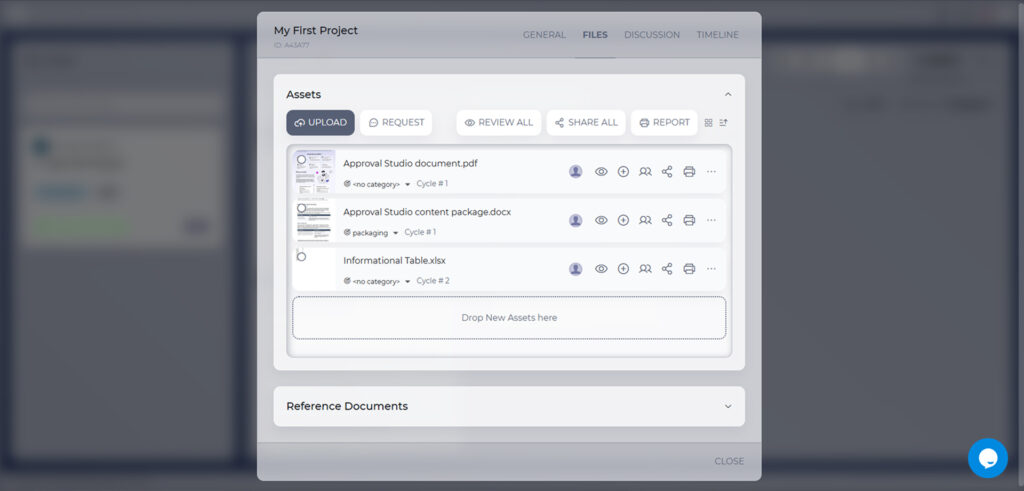
Step 1: Upload the document to document review software
Instead of printing or exporting multiple copies for distribution, the file is uploaded a single time to browser-based document review software, where it becomes the one authoritative version every reviewer opens and works from.
This removes the ambiguity that often comes with emailed attachments: someone reviewing an outdated draft because they missed the “final_v3” email. Setting this up, though, does require the team to choose a platform, grant access to every reviewer, and get everyone at least minimally comfortable navigating it, which is a real setup cost compared with simply printing a document.
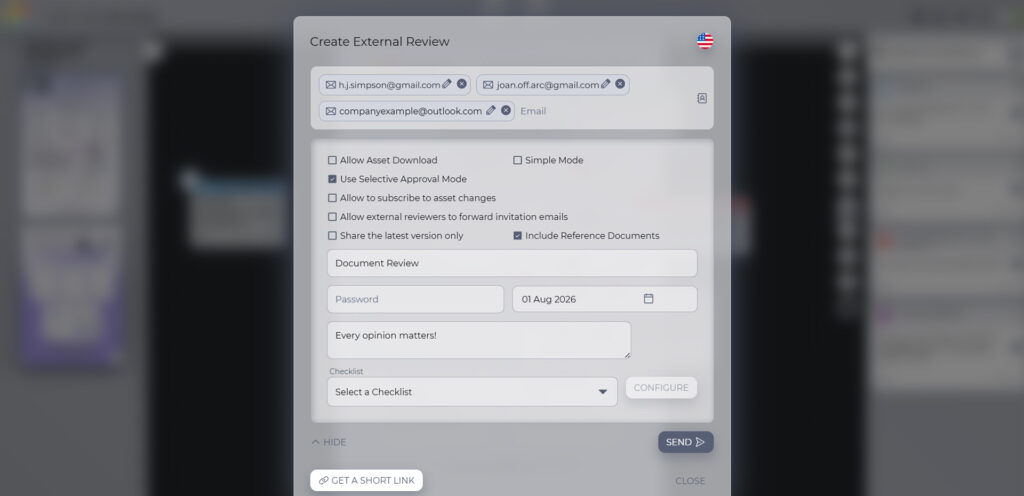
Step 2: Invite reviewers to comment directly on the file
Reviewers are invited, typically by email or a shared link, to open the uploaded document and leave comments or suggested edits directly on it. Sounds much simpler than marking up a separate personal copy that has to be reconciled with everyone else’s later.
Because everyone is commenting on the same live file, reviewers can see each other’s notes as they’re added, turning a fragmented document review process into a genuinely collaborative one. The adjustment here is mostly about comfort and habit: reviewers used to paper or PDF markup may need a little time to get used to a browser-based commenting interface.
Step 3: Track every version and markup in one place
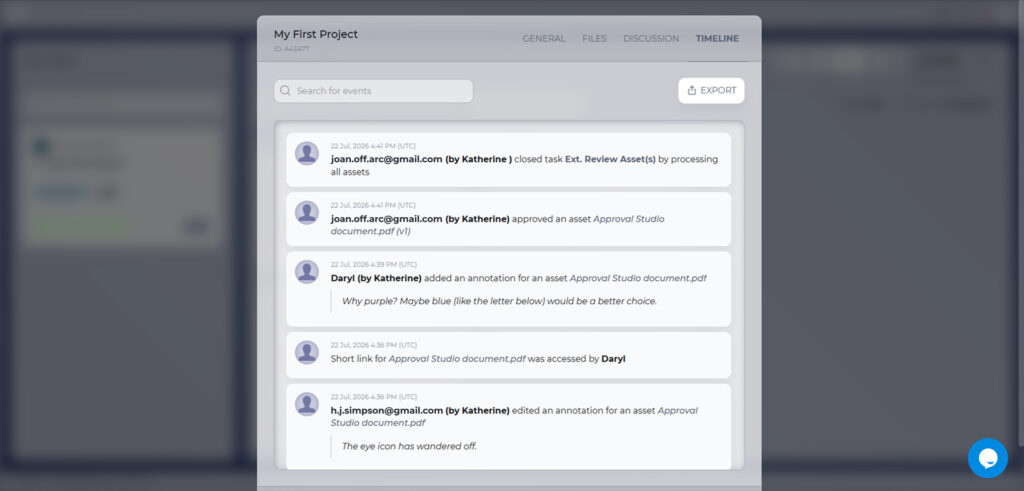
As the review moves forward, every uploaded version, comment, and piece of markup remains attached to that same file automatically, rather than being scattered across email attachments, printed pages, or a folder of similarly-named documents. Over time, this builds a fairly complete history of who commented on what, when a change was suggested, and how the document evolved.
The trade-off is that this history lives inside the platform itself, so referring back to it later depends on the team maintaining access to that tool.
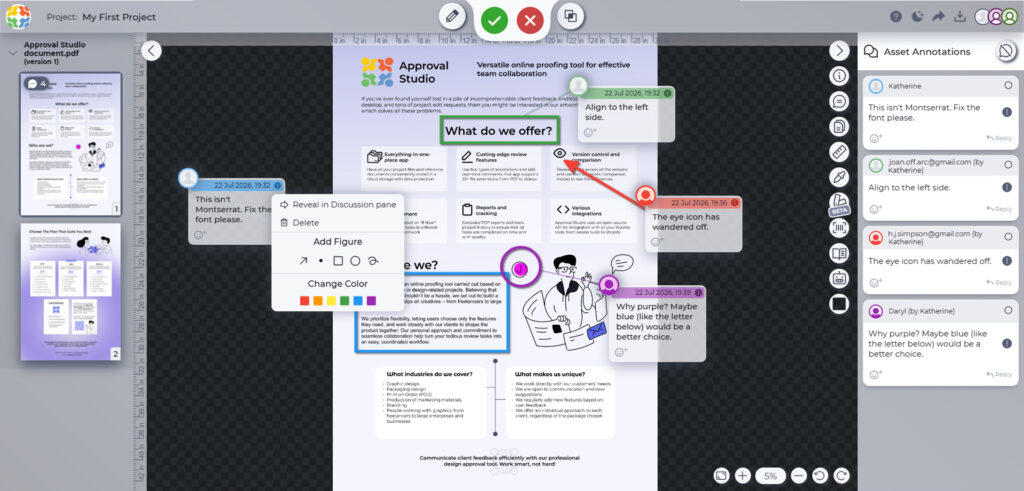
Step 4: Resolve comments and apply corrections
Corrections are made directly inside the same file that reviewers already marked up, so there’s no separate retyping step. Once a change is agreed on, it’s applied right where the comment was made.
As comments are addressed, they can be marked resolved and cleared from the active list automatically. This removes the manual re-entry step that’s one of the biggest sources of error in manual document reviews. Although it still requires someone to work through every comment individually and decide how to act on it.
Step 5: Collect one recorded approval
Instead of chasing signatures through a scattered email thread or a printed sign-off sheet, the platform captures a single, time-stamped approval that’s permanently tied to the exact version of the document that was approved. This creates a clear, searchable record of who approved the document and precisely when. This aspect really matters when someone needs to approve documents quickly on a compliance-sensitive file.
75%
contract turnaround time reduction is what eSignature users reported at DocuSign.
Source: DocuSign, 2023 link↗
The main dependency is adoption: this benefit only holds if approvers are actually willing to use the platform rather than falling back on email out of habit.

Manual Document Reviews vs. Document Approval Software: Key Differences
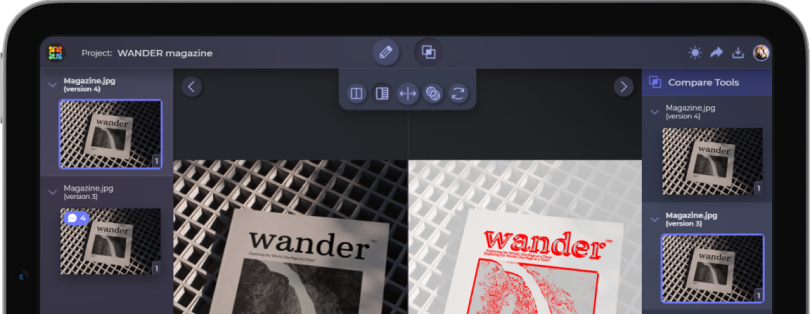
Manual reviews and dedicated approval software differ mainly in speed, version control, and accountability, but the full picture also depends on the tools a team already uses. Many teams handle everyday document review in Google Docs or Office 365, relying on native comments and suggestions. For quick internal edits, that’s often all they need.
Where general-purpose word processors tend to fall short is in supporting a formal document approval process, as they typically lack locked approval stages, controlled access for external reviewers, or a permanent record.
You see, dedicated document software layers structured approval steps on top of a commenting experience similar to what teams already use in Google Docs, combining familiarity with the accountability formal sign-off requires.
Take a look at this table to see a manual document review vs document approval software side-by-side comparison:
| Dimension | Manual document review | Document approval software |
|---|---|---|
| Speed | Depends on emailing files back and forth; turnaround often takes days | Comments and approvals happen in one place, which usually speeds up turnaround |
| Version control | Tracked manually; multiple copies can create confusion about which draft is current | One shared file with automatic version history |
| Accountability | Approval trail is often scattered across inboxes, printed sheets, or shared drives | A single time-stamped approval is tied to the exact version approved |
| Cost | No direct software cost, but reviewer and coordinator time adds up | Subscription or license cost, often offset by time saved on coordination |
| Learning curve | Minimal; relies on familiar tools like email, paper, or PDF markup | Requires choosing a platform and getting reviewers comfortable with it |
| Best fit | One-off, low-stakes documents with few reviewers | Recurring reviews, multiple reviewers, or documents needing a formal, auditable approval |
So, How to Proof Documents: Online or Manually?
The right approach depends less on which method is inherently better and more on what a specific document actually requires. Let me illustrate that with a few concrete scenarios where each one tends to make sense.
For a one-off internal memo, a quick draft, or an email newsletter that only needs a second pair of eyes from a colleague or two, manual review is often perfectly adequate. The stakes are low, there’s no external audit trail required, and setting up a dedicated platform for a single document would likely take longer than just emailing it around.
On the contrary, for a regulated multi-stakeholder contract, a compliance policy, or any document that needs sign-off from several departments or outside reviewers, document proofing software tends to be the better fit. These documents usually involve multiple review cycles, need a defensible audit trail, and can’t afford the version confusion that comes with emailed attachments.

Somewhere in between are documents like recurring reports, marketing collateral that goes through a few rounds of internal feedback, or vendor agreements reviewed by two or three people. Here, the decision often comes down to how often the document type recurs: a process that happens once a year might not justify new software, while one that repeats every week usually earns back the setup time quickly.
As a general rule, the more reviewers involved, the higher the compliance stakes, and the more often the process repeats, the more a document review process tends to benefit from structured software rather than manual coordination.
Final Words
For what it’s worth, manual document reviews aren’t going away anytime soon, and for a one-off, low-stakes file, they can still get the job done without any extra setup. The trade-off, as the comparison above shows, is that this convenience comes at the cost of speed, version control, and a clear accountability trail once more than a reviewer or two gets involved.
Once a document workflow involves multiple reviewers, several revision cycles, or real compliance, document approval software tends to win out. It doesn’t replace good judgment about what to change or who should approve a document, but it does remove much of the manual coordination that makes a traditional document review process so time-consuming.
Ultimately, the right choice comes down to matching the tool to the task. You see, neither approach is better than the other – they work well for different requirements. So only you can decide what’s best for you specifically. And not only document review-wise😉