The Dropbox connector with Dropbox and Approval Studio both connected, and settings for how files become projects and which workflow starts
Dropbox Integration

Send artwork from
Dropbox straight
into review.

Most artwork arrives as files β€” from an agency, a printer, a photographer. Put them in a Dropbox folder and they land in Approval Studio as projects, ready for review. Re-save a file and it becomes the next cycle of the same asset, with its review history intact β€” no one downloads and re-uploads anything by hand.

✓ Nothing to install ✓ Read-only access ✓ Set up in about a minute

The upload step, removed

Nothing about how your team works has to change β€” only who does the uploading.

Without the integration
  • Someone downloads the files from Dropbox, then uploads them again
  • Browsers cap file selection, so large batches go up in chunks
  • Revisions get uploaded as separate files, splitting the review history
  • Version numbers depend on whoever named the file that day
  • Artwork sits in a folder for a week because nobody noticed it arrived
With the integration
  • Files go straight from the folder into the right project
  • Batch size is irrelevant β€” the connector is not a browser
  • A re-saved file becomes the next version of the same asset, automatically
  • Versioning follows the filename, so it is consistent by construction
  • New artwork shows up for review on its own β€” no one has to notice it arrived

Setting it up

Three steps, once. There is no software to install and nothing to keep running.

1

Connect Dropbox

Sign in and approve. A folder named Approval Studio appears in your Dropbox β€” that is the only place the integration can ever see.

2

Connect Approval Studio

Sign in with your own Approval Studio account. Projects are created as you, in your workspace, with your permissions.

3

Put artwork in the folder

That is the whole workflow from then on. Drag files in from your desktop, your phone, or let an agency drop them into a shared folder.

Requires Approval Studio Pro or above

Like every Approval Studio integration, this one works through the API, which is included on Pro plans and above. On a Lite or trial account the connector will tell you so during setup rather than failing quietly later. Starting a workflow automatically needs workflow automation, included on Pro XL and Enterprise and available as an add-on on Pro.

How Dropbox folders become projects

The mapping is deliberately literal, so what you see in Dropbox is what you get in Approval Studio.

In your Dropbox folderIn Approval Studio
A subfolder
Spring Campaign/
A project of the same name, created the first time something lands in it.
A new filename
label-front.pdf
A new asset in that project, at Cycle 1, ready to review.
The same filename, re-saved
label-front.pdf
The next cycle of that same asset β€” Cycle 2, then 3 β€” keeping the comments and decisions that came before it.
The same file, untouched Nothing. The connector compares content, not timestamps, so re-syncing costs nothing and never creates a duplicate version.

Why the filename matters

Versioning follows the filename. Save a revision over label-front.pdf and it continues that asset's artwork cycles; save it as label-front-v2.pdf and you get a separate asset instead. Keeping the name is what keeps the review thread together β€” which is also how designers already work.

Built for how artwork actually arrives

Arrives in seconds

Dropbox notifies the connector the moment something changes, so artwork appears in Approval Studio almost immediately rather than on a schedule.

No batch limits

Twenty campaign variants at once is the same as one. The browser limit on selecting files simply does not apply.

Real version history

Revisions stack onto the asset they belong to, so reviewers compare against what they approved last time instead of hunting for it.

Starts the review for you

Pick one of your workflows with a manual-start action and it runs once per project after the files land β€” so reviewers are notified without anyone opening Approval Studio.

Three ways to organize

A project per folder, everything into one project, or a project per file β€” for shops where one artwork is one job.

Tells you what it skipped

Working files, lock files and formats Approval Studio does not proof are filtered out and reported β€” not uploaded and left to fail.

Dropbox security

It can only see one folder

The integration is an App folder application. Dropbox confines it to Apps/Approval Studio inside your account, and enforces that boundary itself β€” not in our code. The rest of your Dropbox is invisible to it, whatever happens.

  • Read-only. It holds no permission to create, change or delete anything in your Dropbox.
  • Your files are not kept. Content passes through on its way to Approval Studio and is not stored.
  • Tokens are encrypted at rest and never sent to your browser.
  • Revoke whenever you like β€” Disconnect and erase this connection in the connector, or from Dropbox under Connected apps.
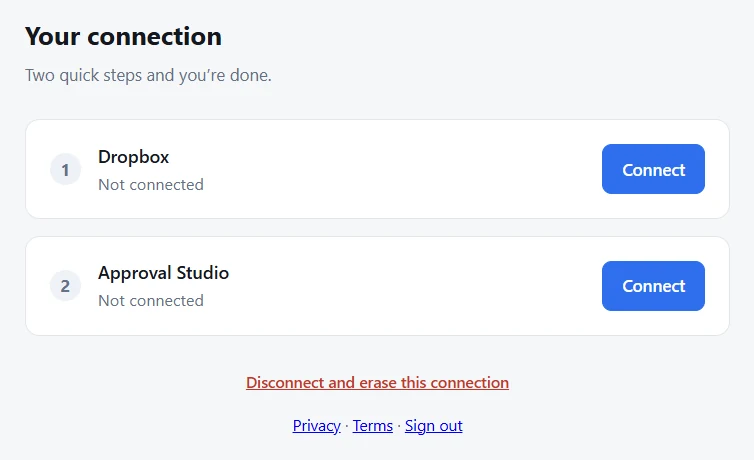
The connector connection page with Connect buttons for Dropbox and Approval Studio and a link to disconnect and erase the connection
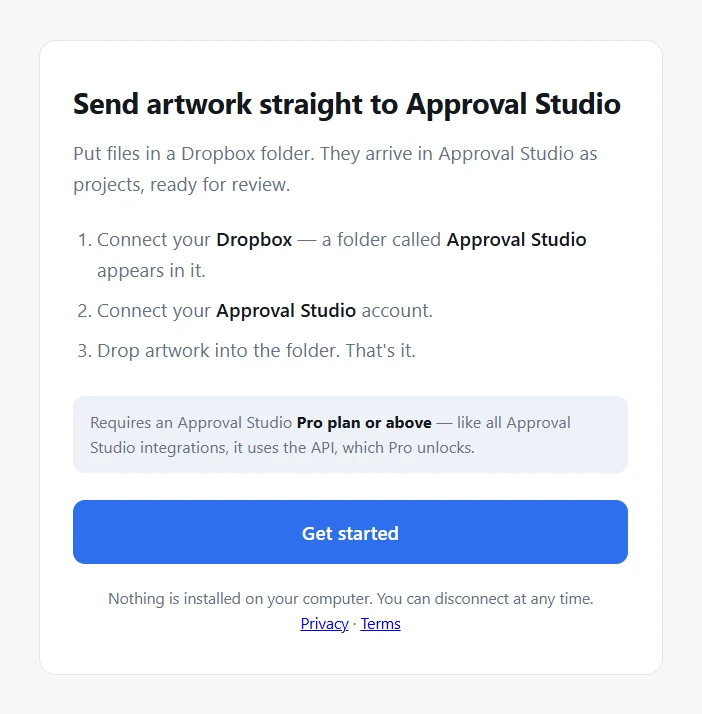
The Approval Studio Dropbox connector start page: connect Dropbox, connect Approval Studio, drop artwork into the folder
Who it suits

When files come from someone else

Our design-tool integrations β€” Adobe, Figma, Canva β€” put the designer in control. This one is for the artwork you did not create. See all integrations.

  • Brands working with agencies β€” the agency drops finals into a shared folder and review starts on its own.
  • Packaging and label teams β€” one PDF per job, arriving from the printer or repro house.
  • Performance marketing β€” twenty ad variants at once, none of them worth uploading by hand.
  • Photo and video production β€” selects land in the folder straight from the shoot.

Frequently asked questions

Do I need to install anything?

No. It runs as a service, so there is nothing on your computer and no machine that has to stay switched on. Your laptop can be closed β€” files added from your phone or by a colleague still arrive.

Does it work both ways?

Not today. Files move from Dropbox into Approval Studio only, and the integration holds read-only permissions, so it could not write to your Dropbox even if asked. Getting approved files back into the folder is something we are considering β€” tell us if you want it.

What happens if I put the same file in twice?

Nothing, if the file is unchanged β€” the connector compares content rather than timestamps, so a re-sync does not create a duplicate version. If the contents differ, it becomes the next version of that asset.

Which file types work?

The same ones Approval Studio proofs: PDF, AI, EPS, PNG, JPEG, TIFF, GIF, BMP, Word, Excel and PowerPoint files, OpenDocument, RTF, TXT, HTML and MP4. Anything else β€” working files such as PSD or INDD, WebP, MOV, archives, audio β€” is skipped and reported.

Can several people use the same folder?

Yes. Share the Dropbox folder with whoever supplies your artwork. Anything they add arrives in Approval Studio the same way, and they never need an Approval Studio login to hand work over.

Which plan do I need?

Pro or above. The integration works through the Approval Studio API, which Pro unlocks β€” the same as every other Approval Studio integration. Any Dropbox plan is fine, including the free one. Starting a workflow automatically needs workflow automation, included on Pro XL and Enterprise and available as an add-on on Pro.

How do I disconnect?

One button on your connection page removes the link, the settings and the stored history immediately. Everything already delivered stays in your Approval Studio account. You can also revoke access from Dropbox under Settings β†’ Connected apps.

Stop uploading artwork by hand

Connect a folder once. From then on, artwork that lands in Dropbox is waiting for your reviewers in Approval Studio β€” usually before anyone thinks to go looking for it.

✓ No Cards Required ✓ No Installation ✓ Free Personal Demo