Keep all your best approved designs within reach
Reuse any of your approved assets across different projects in just a few clicks with the Digital Asset Library.
Let’s streamline your design cycle!
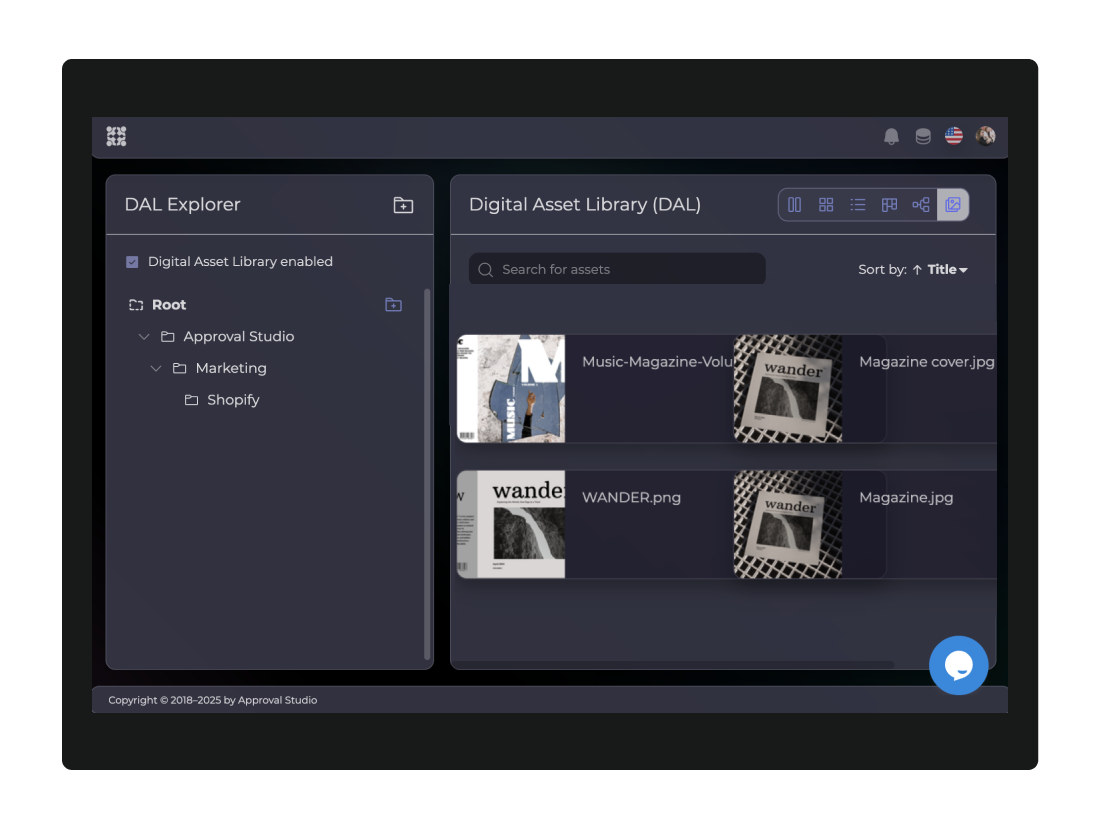
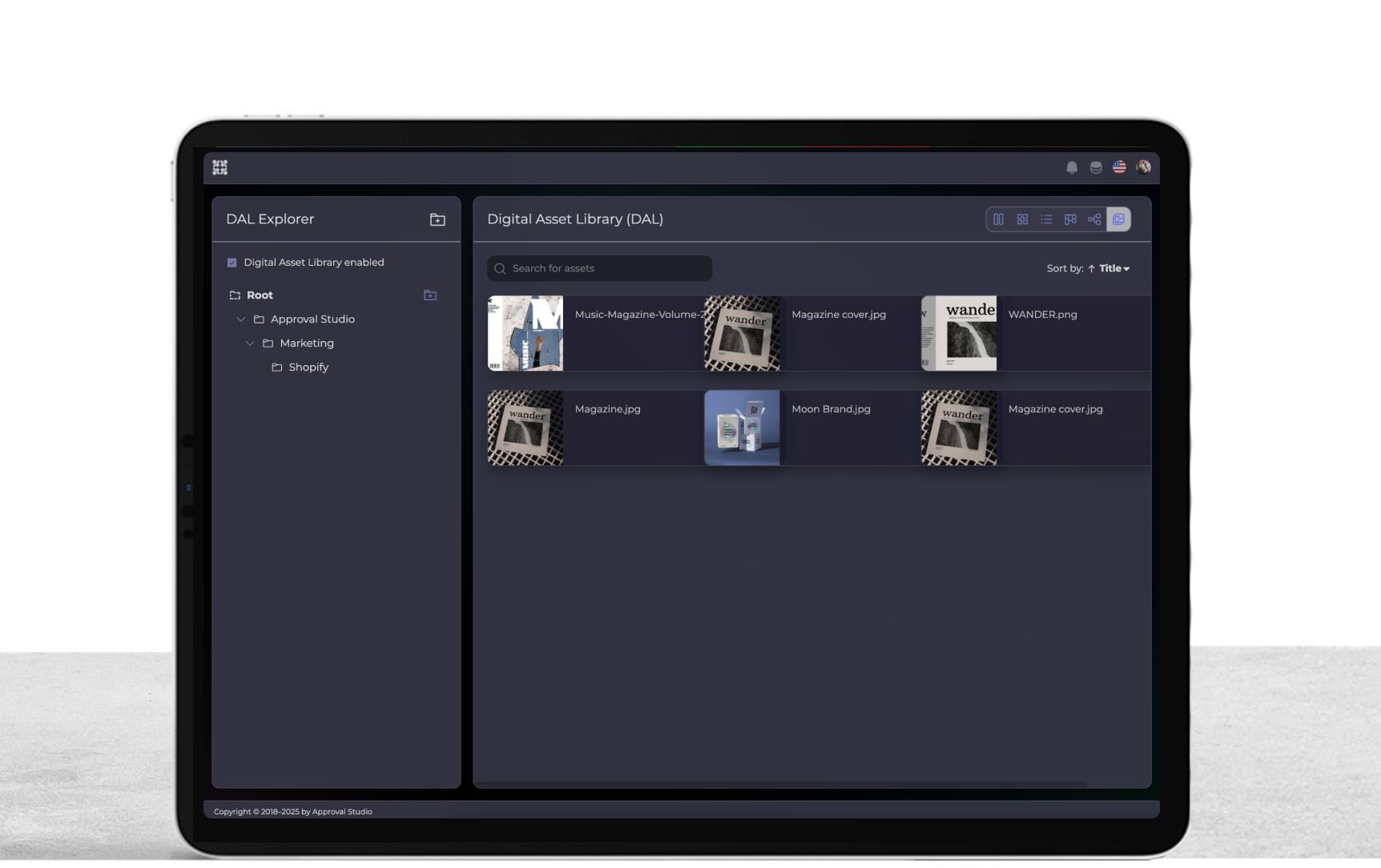
The Digital Asset Library (DAL) is here to help you forget the hassle of digging through past projects or searching external folders. And that’s because it provides you with a centralized hub to save all your favorite assets.
Instant access
Retrieve any approved file across projects with a couple of clicks. Keep them organized and searchable in your DAL.
Template creation
Transform your past assets into templates for future projects. That’s a great way to keep your brand consistency.
Traceable feedback
Give old designs a new life. Why start from scratch when you can simply modify the already approved design?
Recurring design has never been easier
DAL is a perfect feature for marketing teams, creative agencies, and businesses that deal with recurring design on a regular basis. The library stores all your selected works organized and accessible for every team member to use at any moment.
Separate centralized hub
Marketing templates
Team-wide access
No duplicate work
How to set up your DAL
1 Step
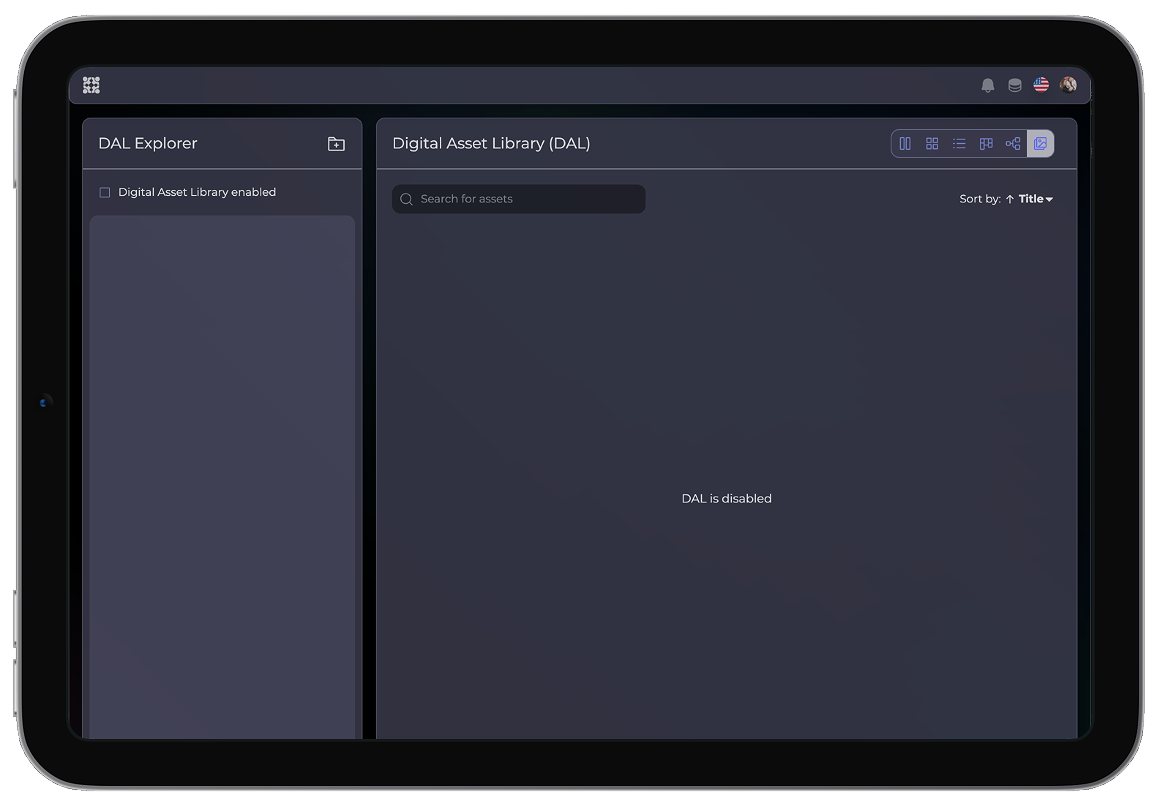
As a Company Admin, click the DAL View icon to open the Digital Asset Library in the top-right corner.
2 Step
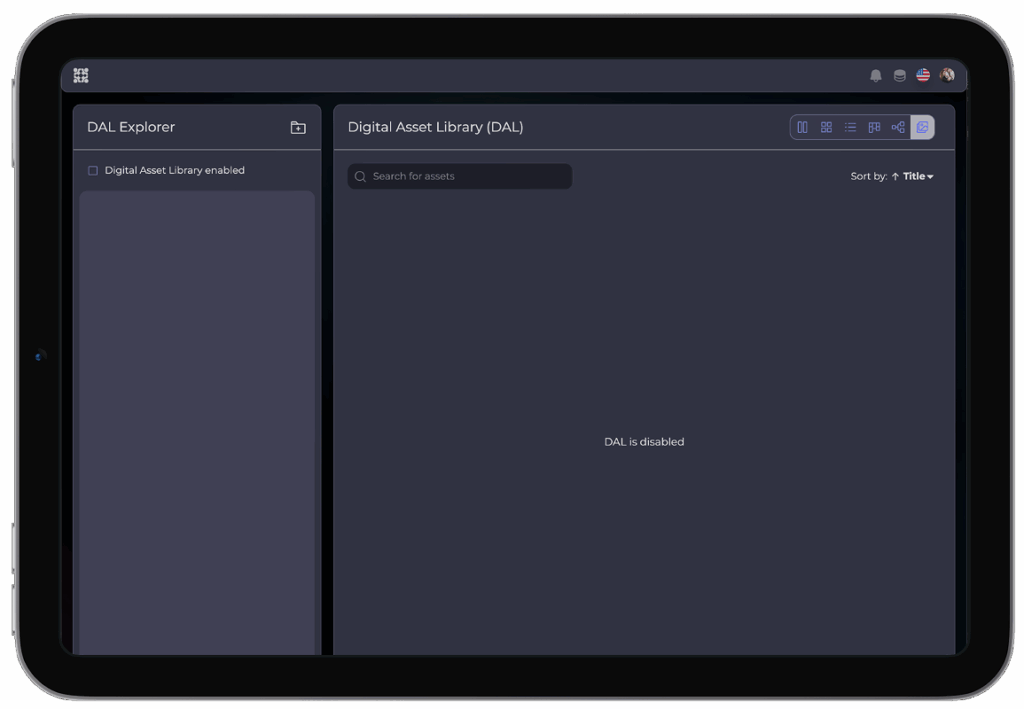
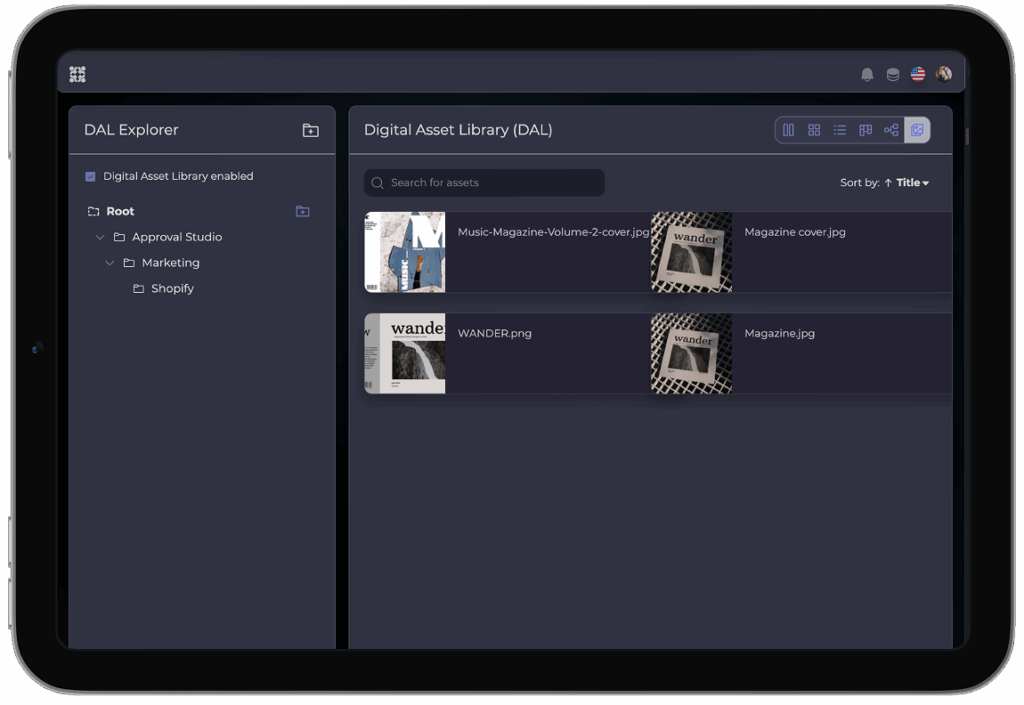
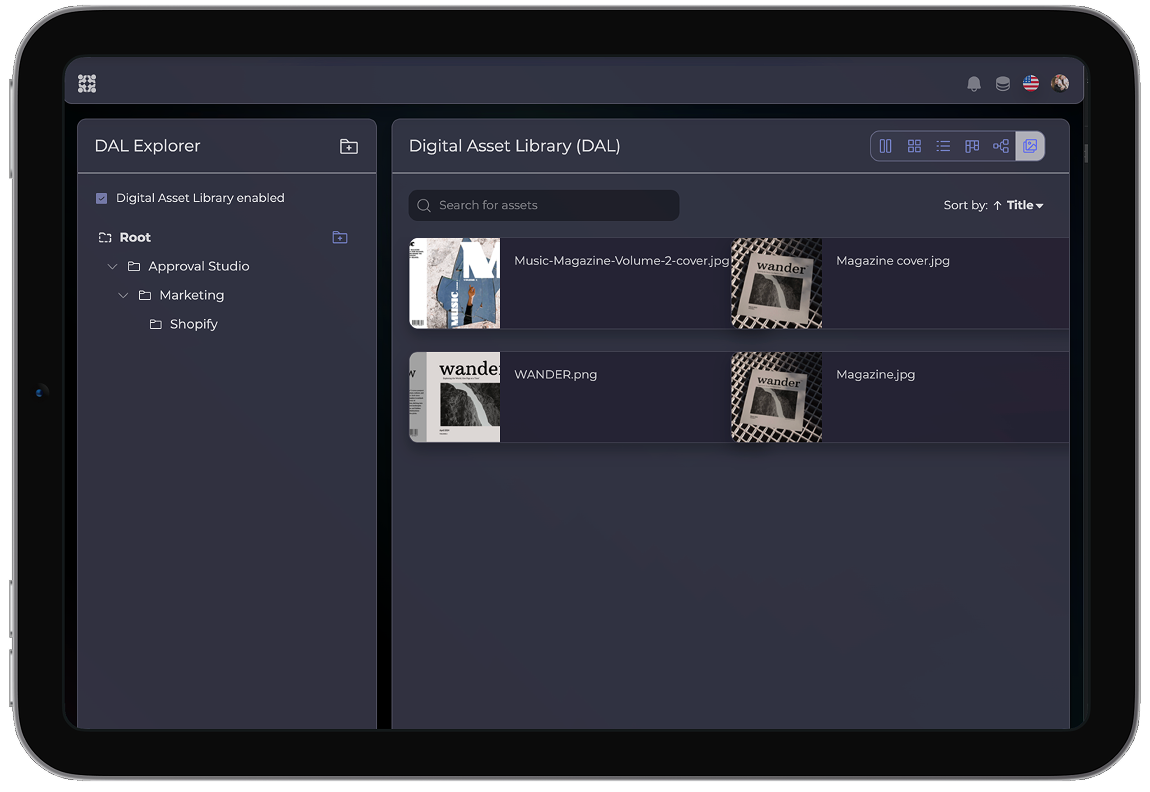
On the left panel of the DAL view, click “Digital Asset Library enabled.” Once activated, you can create folders to organize your library.
3 Step
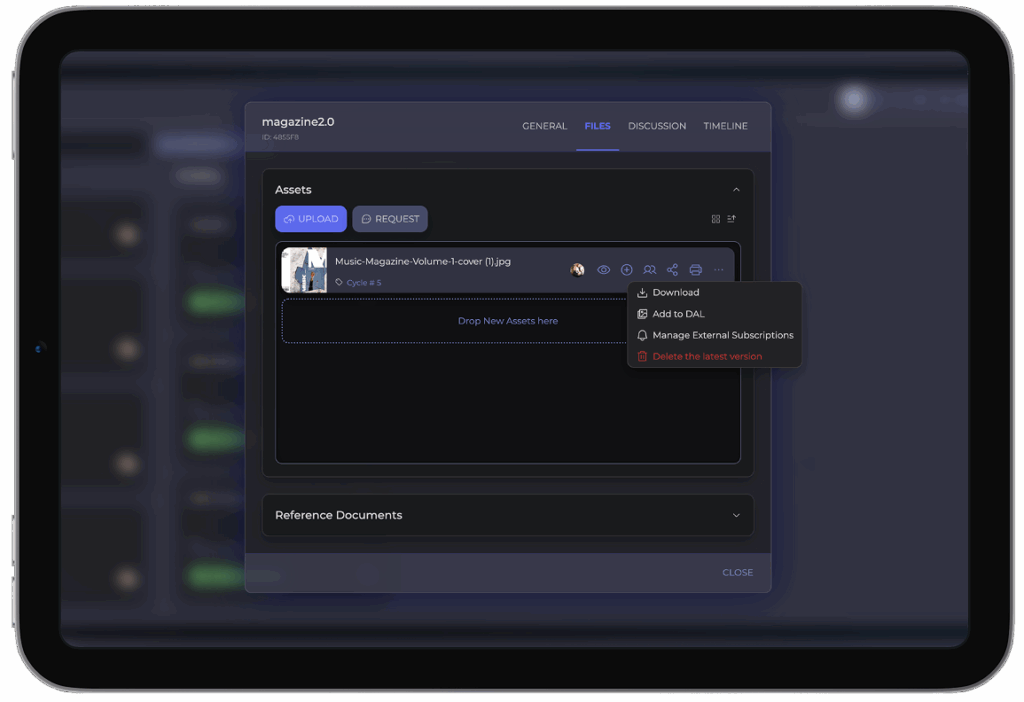
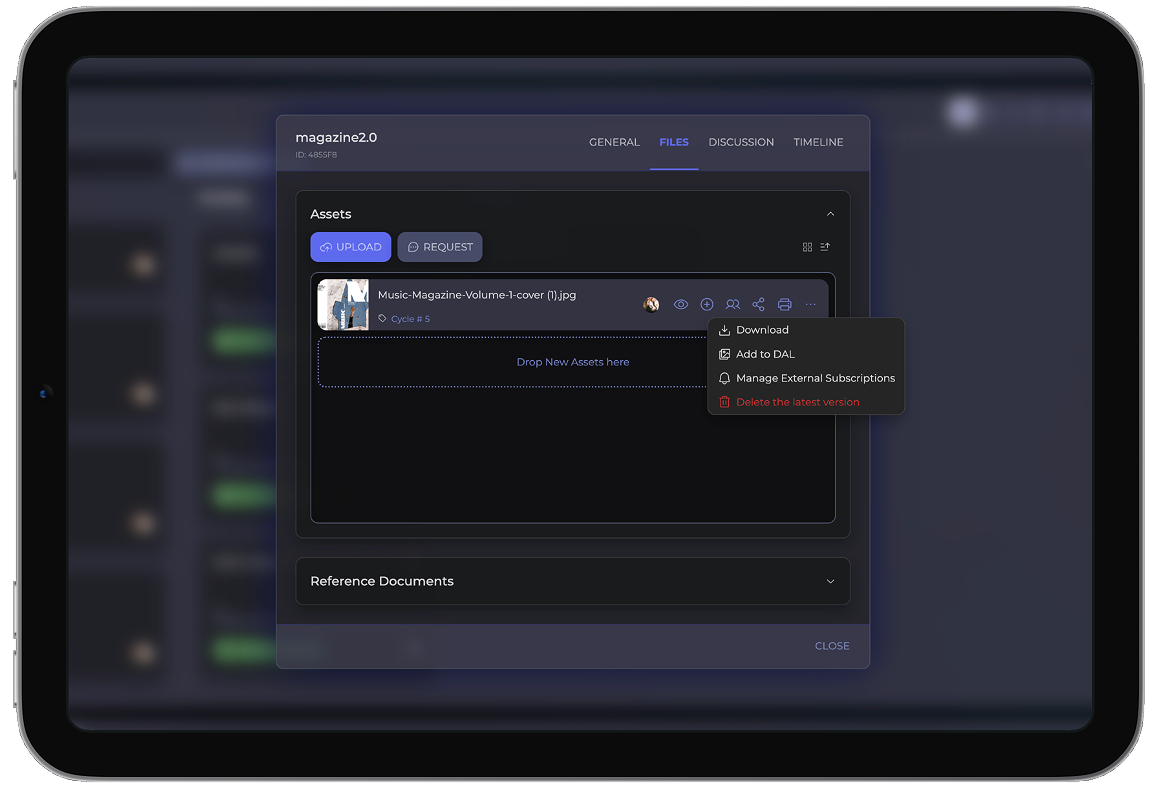
After activation, all users will see a new action on their assets: “Add to DAL,” allowing them to move approved assets into the library.
4 Step
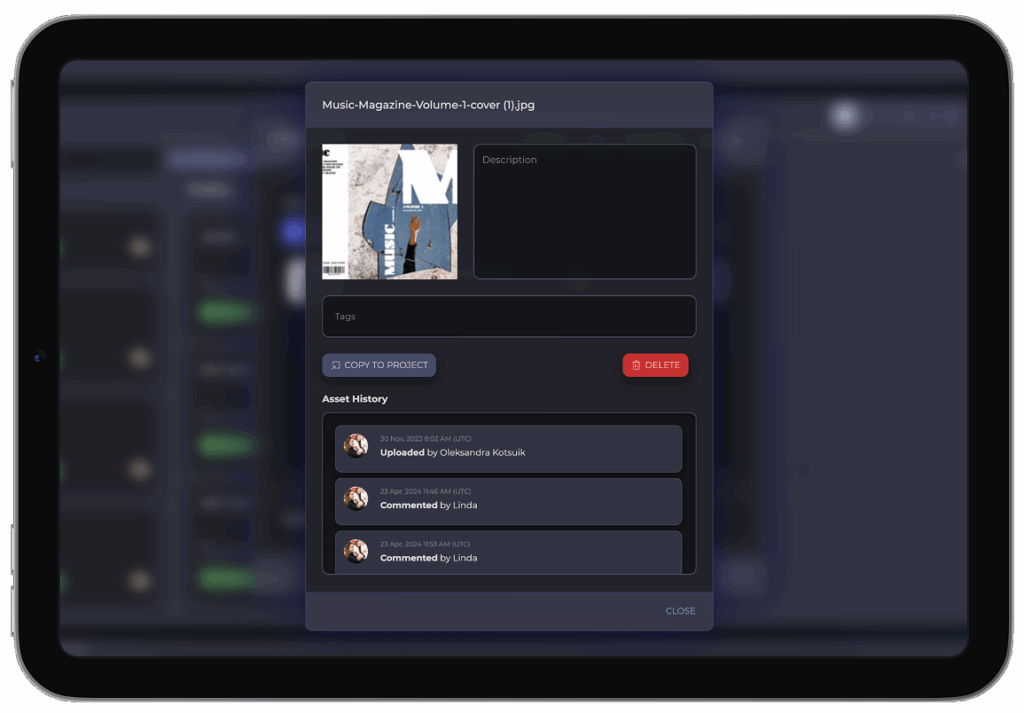
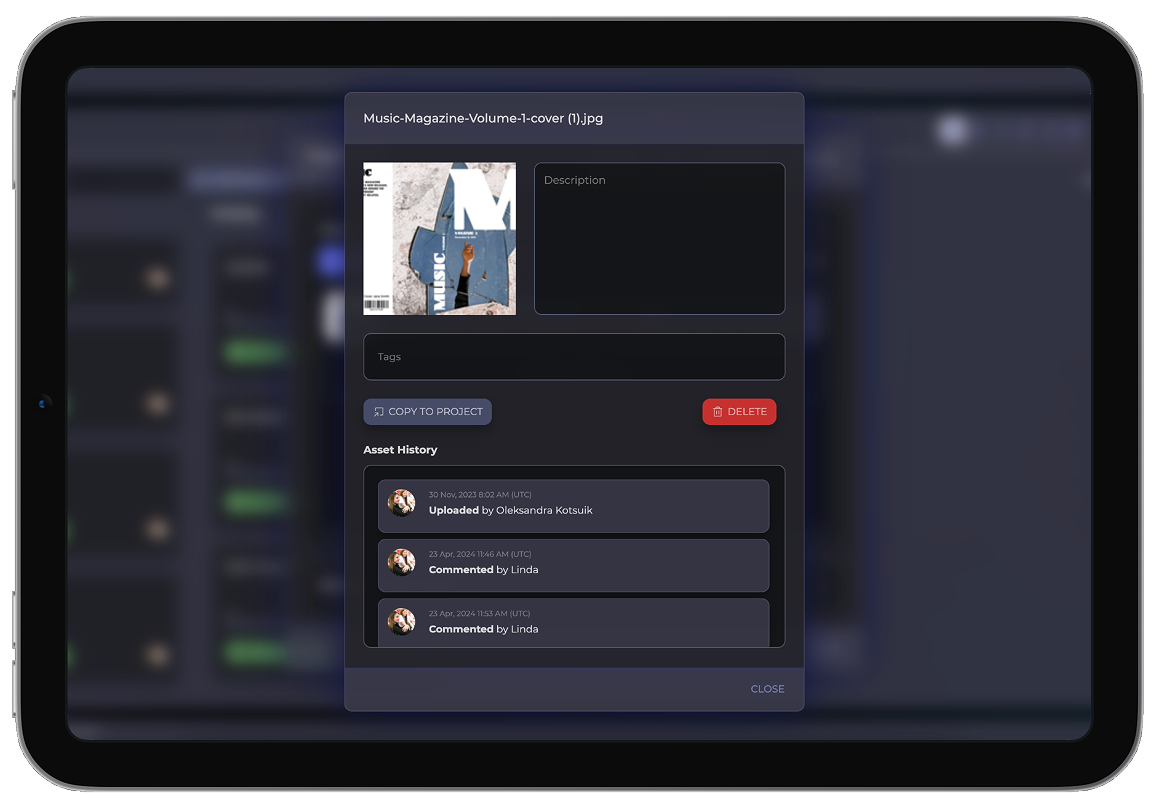
For assets stored in DAL, users will see an option to “Copy to Project,” making it easy to reuse approved files as templates.
Reuse, modify, and profit from your past successful projects.
Step 1As a Company Admin, click the |
|
Step 2 On the left panel of the DAL view, click “Digital Asset Library enabled.” |
|
Step 3After activation, all users will see a new action on their assets: “Add to DAL,” |
|
Step 4For assets stored in DAL, users will see an option to “Copy to Project,” making it easy |
|
TEAM SOLUTIONS
WORKFLOW SOLUTIONS

REVIEW TOOL
PROJECT MANAGEMENT
TOOLS & INTEGRATIONS
CLIENT INTERVIEWS