TEAM SOLUTIONS
WORKFLOW SOLUTIONS
REVIEW TOOL
PROJECT MANAGEMENT
TOOLS & INTEGRATIONS
TEAM SOLUTIONS
WORKFLOW SOLUTIONS
<!–
–>
<!–
–>
REVIEW TOOL
PROJECT MANAGEMENT
TOOLS & INTEGRATIONS
Approval Studio · Sent for review: hero-banner.pdf — v2
Approval Studio · 💬 1 new comment on hero-banner.pdf v2
#1, p.1 — Dana Lee: Logo 10% larger, please
Approval Studio · ✅ Approved by Dana Lee — open in Approval Studio
Your projects live in Asana; your artwork approval lives in Approval Studio. The integration joins them up. Files attached to an Asana task go to Approval Studio for review, and every request, comment and decision comes back to that same task. When everything is approved, the task ticks itself off.
Project managers stay in Asana. Reviewers work in Approval Studio. Nobody copies status from one to the other.
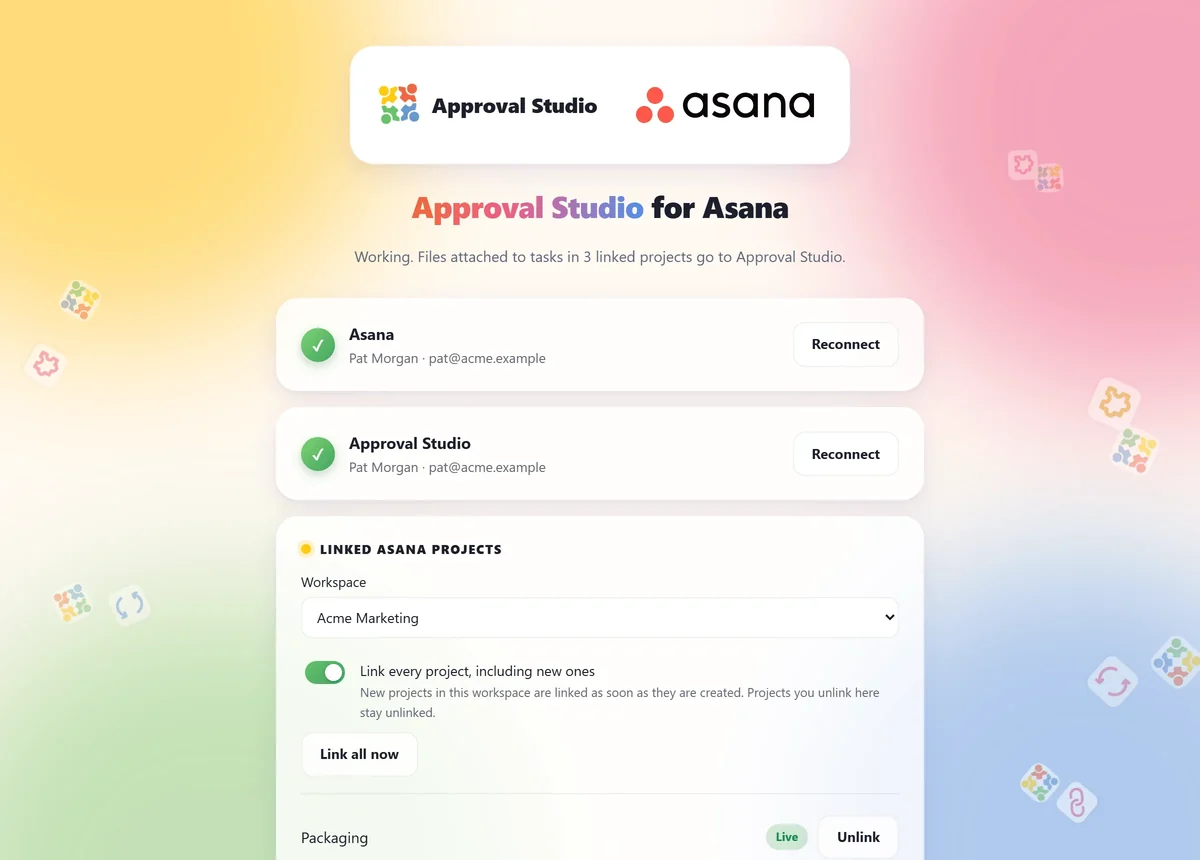
Four steps, once, in your browser at connect.approval.studio. There is no software to install and nothing to keep running.
Sign in to Asana and allow access. You choose the workspace; the integration only ever works in the projects you link.
Sign in with your own Approval Studio account. Projects are created as you, in your account, with your permissions.
Pick Asana projects one by one, or switch on Link every project, including new ones, so new projects are covered as they are created.
Every attached file, or only tasks someone marks for review. Optionally, pick the workflow and which Asana fields to carry over.
Like every Approval Studio integration, this one works through the API, which is included on Pro plans and above. Any Asana plan works, including the free one. Custom-field features need a paid Asana plan, because that is where Asana offers custom fields. Starting a workflow automatically needs workflow automation, included on Pro XL and Enterprise and available as an add-on on Pro.
Not every attachment is artwork. Pick the rule that matches how your team works, and change it at any time.
Anything attached to a task in a linked project goes for review. Files that were already there when you linked the project are left alone.
A task is sent when someone sets its status field to Send for review. The same field then follows the review on its own:
Drag a task into a section such as Ready for review, in the list or on the board. Works on every Asana plan, including the free one.
Once a task has been sent, new files attached to it go through as new versions automatically. There is no need to send it again.
Every update is a normal Asana comment, labelled Approval Studio · so nobody mistakes it for a colleague's message.
| In Approval Studio | On the Asana task |
|---|---|
| A review is requested | 🔎 Comment naming the reviewer, with a link to the proof. Status field: In review. |
| A reviewer comments | 💬 New comments grouped per file, with the annotation number and page, for example "#2, p.1 — Dana Lee: Logo 10% larger". A ✓ follows when a comment is resolved. |
| Changes are requested | ❌ Comment naming who asked. Status field: Changes requested. If the task was already ticked off, it is reopened. |
| Everything is approved | ✅ Comment naming who approved. Status field: Approved, and the task is ticked complete. Only the newest version of each file counts. |
| A new version is uploaded in Approval Studio | 📎 Comment with the file name and version number. |
Versions follow the filename. Attach a revised hero-banner.pdf to the same task and it
continues that asset's artwork cycles in Approval Studio, so reviewers compare it with what they saw last
time. Rename it to hero-banner-final.pdf and it becomes a separate asset instead.
Link projects one by one, or let the integration link every project, including ones created next month. Projects you unlink stay unlinked.
Rules pick the Approval Studio workflow from an Asana field, section or project: Legal to one workflow, Quick to another, everything else to a default.
Copy Asana custom fields such as Client or SKU into the Approval Studio project's fields and tags, so nobody retypes them.
Revisions attached to the task stack onto the asset they belong to, so reviewers can compare against the version they saw last time.
Asana and Approval Studio notify the integration the moment something changes, so files and decisions appear within seconds.
Links to files stored elsewhere, and formats Approval Studio cannot proof, are skipped and reported in your activity list, rather than failing quietly.
Also see the Dropbox and Microsoft Teams integrations, or all tools and integrations.
The integration works in the Asana projects you link, and only in the ways it needs to.
No. The integration runs as a service at connect.approval.studio. There is nothing on your computer, nothing to install in Asana, and no machine that has to stay switched on.
Approval Studio Pro or above, because the integration uses the Approval Studio API. Any Asana plan works, including the free one. Custom-field features, such as the Approval status field and copying fields into projects, need a paid Asana plan. Starting a workflow automatically needs workflow automation, included on Pro XL and Enterprise and available as an add-on on Pro.
Only if you choose that. You can instead send only the tasks someone marks Send for review, or only the tasks moved into a section you name. Files already attached when you link a project are left alone.
No. Reviewers work in Approval Studio exactly as they do today, including external reviewers without any account. Only the person who connects the integration needs access to both.
Asana shows the person who connected the integration as the author of the comments it writes. That is why every update starts with Approval Studio · and names the actual reviewer, for example "Approved by Dana Lee".
The ones Approval Studio proofs: PDF, AI, EPS, PNG, JPEG, TIFF, GIF, BMP, Word, Excel and PowerPoint files, OpenDocument, RTF, TXT, HTML and MP4. Working files such as PSD or INDD, WebP images, and attachments that are only links to files in Dropbox, Google Drive or Box, are skipped and listed in your connection's activity.
One button on your connection page removes the link, your settings and the stored history immediately. Everything already in Approval Studio and in Asana stays where it is. You can also revoke access in Asana under My settings → Apps.

Connect once. From then on, artwork goes from your Asana tasks to your reviewers, and their decisions come back to the task, without anyone passing messages between the two.
Asana and the Asana logo are trademarks of Asana, Inc. Approval Studio is not affiliated with, sponsored by or endorsed by Asana, Inc.