TEAM SOLUTIONS
 WORKFLOW SOLUTIONS



 REVIEW TOOL
 PROJECT MANAGEMENT
 TOOLS & INTEGRATIONS
 CLIENT INTERVIEWS




Last updated: October 2026
So you’ve finally finished the design and feel quite happy with it. However, it’s only half the journey: now your client needs to look at it, comment on it, and say yes (hopefully). For many freelancers, this part takes longer than the design itself.
And I don’t mean to say that each client’s life mission is to make you hate your job. Most of the time, delays happen due to bad communication rather than bad people. I’m sure you’ve experienced the chaos caused by a combination of a comment by email, another as a voice message, and a screenshot with a red circle in a messenger. You just spend your time collecting and sorting notes instead of designing. On top of that, when the project ends, there is often no clear record of what the client actually approved.
This guide shows you how to use ExpressReview to keep that whole review and approval process in one place. It works as an ExpressReview tutorial if you just signed up. It also works as a reference if you are still deciding whether the tool fits your work.
By the end, you will know exactly how to run your first review, from the first upload to the final approval.
What Is ExpressReview?
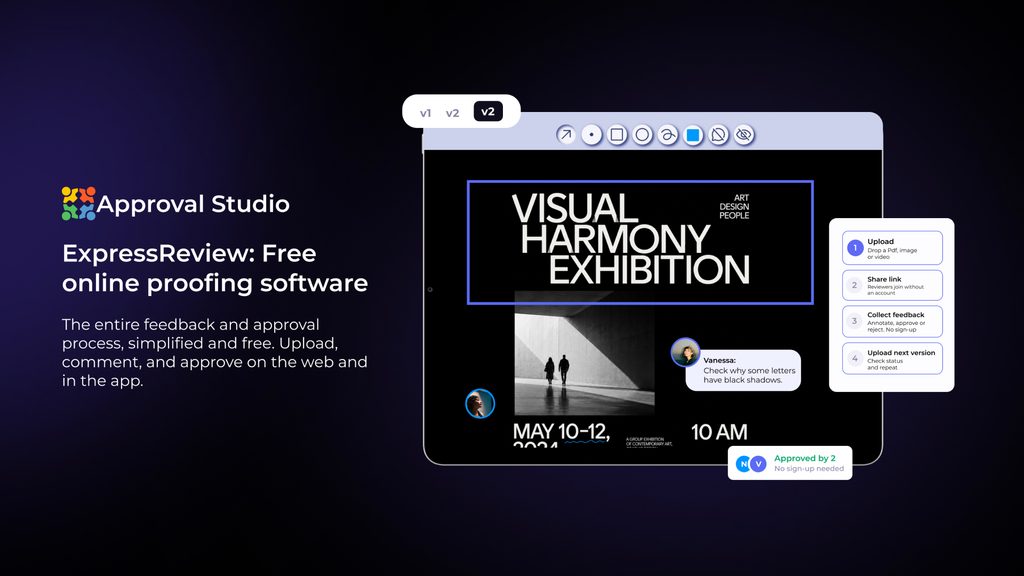
In simple terms, ExpressReview is a place where your file and all the feedback on it live together. Instead of sending attachments back and forth, you send one link. Your client opens it, leaves comments directly on the file, and makes a decision. Then you upload the next version, and the cycle repeats until the work is approved.
ExpressReview uses the same review engine as Approval Studio. That means your client gets the same 5 artwork annotation and 4 comparison tools that larger teams use. However, ExpressReview leaves out projects, teams, tasks, and workflows.
This difference matters when you work alone and do not need a system that manages ten people and twenty stages. Instead, you need a simple way to get clear feedback and a clear yes. ExpressReview is built around exactly that.
Who Is ExpressReview For?
ExpressReview is built mainly for freelancers and solo designers. In other words, it is for people who send work to clients and need feedback that is clear, organized, and easy to act on. It also works well for people who are the only marketer in their company and need quick sign-off from a manager or a couple of colleagues.
Here are a few typical examples:
- A logo or brand designer who sends concepts to a small business owner and needs comments on specific shapes and colors.
- A packaging or print designer who needs the client to check text, colors and layout before files go to the printer.
- An illustrator who shares sketches and final art and wants to keep each round of feedback separate.
- A freelance marketer or copywriter who sends PDFs, presentations or Word documents for sign-off.
- An in-house solo marketer who needs a boss and one or two colleagues to approve flyers, social posts, or presentations without chasing replies in Slack or email.
- A startup founder working with an outside designer on a logo or website, who wants all comments in one place and a clear record of the final version.
- A design student sharing coursework or first client projects, who wants a more professional way to collect feedback.
ExpressReview is a good fit if most of these sound familiar:
- Your clients or colleagues do not want to sign up for yet another tool.
- You send files via email, WhatsApp, Telegram, or Slack, and feedback gets lost there.
- You want a record of what was approved, by whom, and when.
- You usually review one or a few files at a time rather than running large projects.
- You do not want to pay for team features or extra seats you will never use.
On the other hand, if you work in a team with several reviewers, fixed approval stages, and project tracking, Approval Studio is the better fit. It is the same review tool with more structure around it. The same applies if your marketing team starts to grow and one project or one active file is no longer enough: Approval Studio is the natural next step. For online proofing for freelancers, however, ExpressReview is enough on its own.

What You Need Before You Start
You need very little to run your first review. Still, a few minutes of preparation will make the process smoother.
1. An ExpressReview account. You can use ExpressReview in any browser. There are also iOS and Android apps. They are useful when you are away from your desk, because you can start a review on your computer and follow up from your phone later. In addition, the app sends push notifications, so you know as soon as a client leaves a comment or makes a decision.
2. A file in a supported format. In ExpressReview, you are not limited to artwork. You can also share a PDF for feedback, such as a brand guide, or send a pitch deck in PowerPoint or a Word document with website copy. All of these open in the same review tool. So your client uses the same annotation tools regardless of file type.
| Files | Formats and limitations |
|---|---|
| Images | TIFF, JPEG, GIF, BMP, PNG, AI |
| Documents | PDF, DOCX, XLS, XLSX, PPTX, PPT, RTF, TXT, ODT, ODS and other Office formats |
| File size | Up to 100 MB per file |
| PDF length | Up to 50 pages |
3. A file that is ready for review. Before you upload, check that the file shows what elements you want feedback on. For instance, if your client should check colors, export at a quality that shows them well. If your PDF has more than 50 pages, split it into parts. Also, make sure the file is under 100 MB. Large layered files often need to be flattened or exported first.
4. A clear idea of who reviews. Decide who your main contact is before you send anything. If several people on the client side will comment, ask who makes the final decision. This saves you from conflicting feedback later.
How to Run Your First Review in ExpressReview
In short, you upload a file, share the link, collect annotations, compare versions, and get the final approval. In the steps below, I’ll explain each part in detail, including what you will see and what to watch out for.
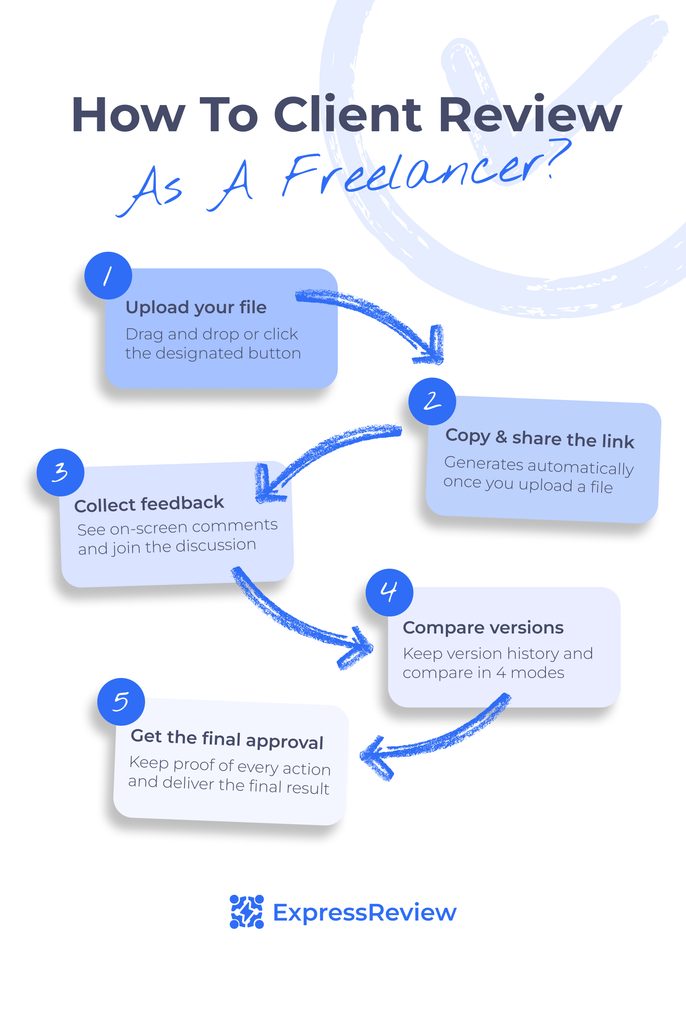
Step 1. Upload your file
First, open ExpressReview and drag your file into the upload area. Alternatively, click the area and choose the file from your computer.
Once the file is in, ExpressReview processes it automatically. During this step, the file is prepared so it can open in the review tool. This usually takes a few seconds. Larger files and long PDFs may take a little longer.
After processing, your file appears in your list. You will see its name, its version number, and its current status. At this point, open the file yourself and take a quick look. Check if every page loaded and nothing looks wrong. It is much easier to fix a problem now than after your client has already opened the link.
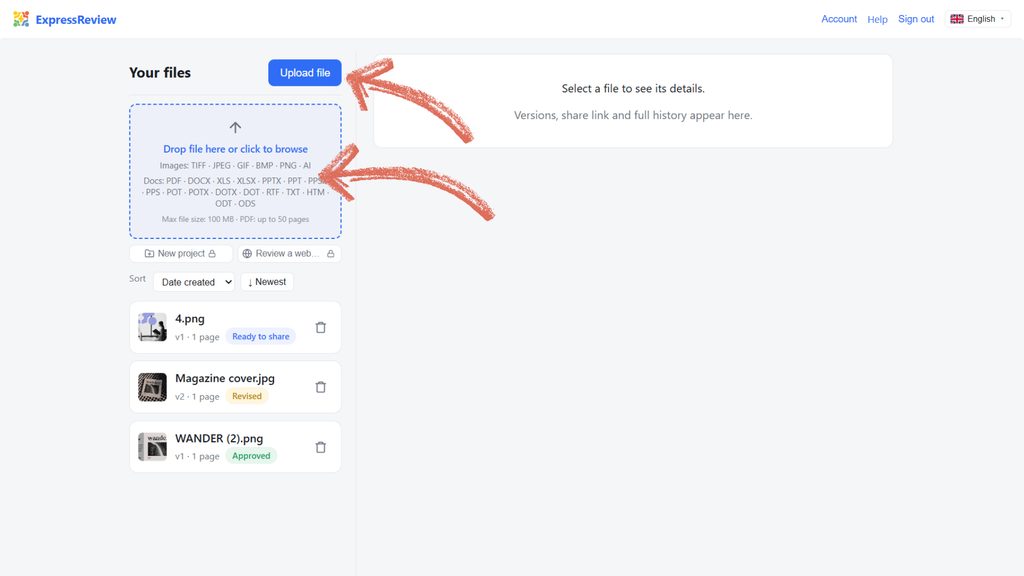
If the upload does not work, check three things. First, make sure the file is under 100 MB. Second, check that its format is in the supported list above. Third, if it is a PDF, make sure it has 50 pages or fewer. In most cases, one of these is the cause. To fix it, export the file at a smaller size, save it in a supported format, or split a long PDF into parts.
Tip: Name your file clearly before you upload it, for example, “logo-acme-v1.pdf”. Your client will see the file name. A clear name helps them understand what they are reviewing, especially if they work with several freelancers at once.
Step 2. Share the review link
As soon as processing is done, ExpressReview creates a short client review link. Copy it and send it to your client in the way you normally talk to them. That can be email, a messenger, or a direct message. It doesn’t require you to change how you communicate with clients.
When you send the link, add a short note. Tell your client what you need from them. For example, say whether you want feedback on the overall idea or on small details. Also, give them a date by which you need a response. Clear expectations usually lead to faster and more useful feedback.
Keep these points in mind when you share:
- One link works for many people. If your client wants a partner or manager to look too, they can share the same link. Each person enters their name before they comment. So you always know who said what.
- Each new version gets a new link. This is by design. It makes sure your client always opens the right version and never comments on an old one by mistake. Therefore, when you upload a revision later, remember to send the new link. If a client ever says they still see the old design, they have most likely opened the link from an earlier round. In that case, simply send the current link again.
- Each link opens one file only. Nobody can use it to see the rest of your account. Still, treat the link like a key and send it only to the people who should review the file.
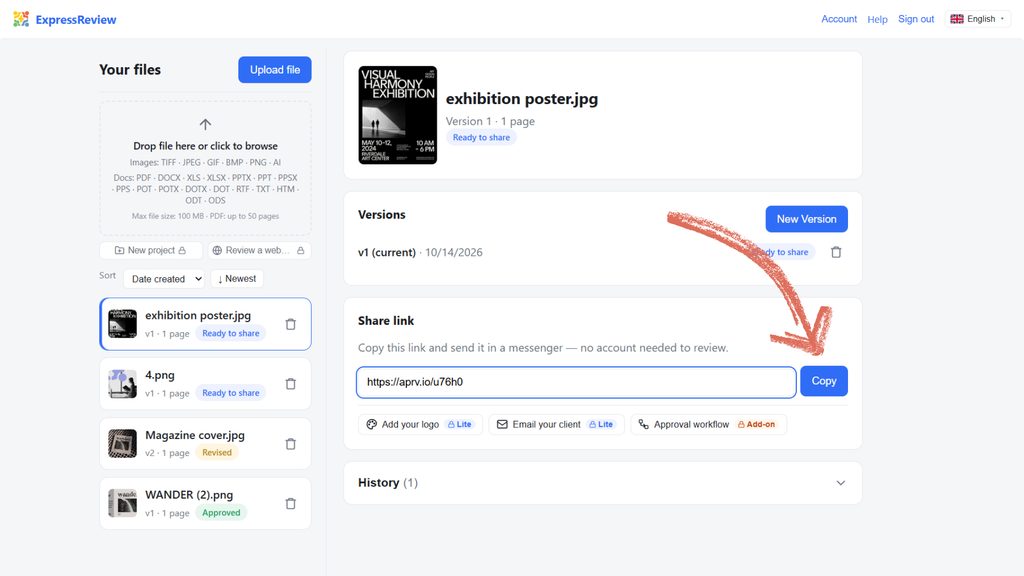
This is the simplest way to send a design to a client for feedback without asking them to sign up for anything.
Step 3. Collect annotations and comments
Next, your client opens the link in any browser. They see your file in the full review tool, and they can start marking it up right away. This works on desktop, tablet, and phone. So your client can review during a meeting, on the train, or from the sofa.
Your client has five annotation tools. Each one suits a different kind of comment:
| Tool | When to use it |
|---|---|
| Point | To comment on one exact spot, such as a word, a letter or an icon |
| Box | To mark a rectangular area, such as a block of text or a photo |
| Circle | To highlight a round or loose area |
| Arrow | To point from one element to another, for example “move this here” |
| Freehand | To draw, underline or sketch an idea by hand |
Every mark comes with a comment. Because comments sit directly on the file, there is no guessing about what “the thing on the left” means. Moreover, comments are threaded. That means you and your client can reply to each other under the same point. If a comment is unclear, ask your question right there.
In addition, a discussion panel collects all comments in one list. This is useful when you start working on changes. You can go through the list from top to bottom and make sure you do not miss anything.
For detailed work, the review tool has a few extra helpers. The eyedropper shows RGB, CMYK, and Pantone values for any point on the file. This helps when a client asks whether a color matches their brand. There is also an on-screen ruler for checking sizes and distances, and a background picker for seeing how a design looks on different backgrounds.
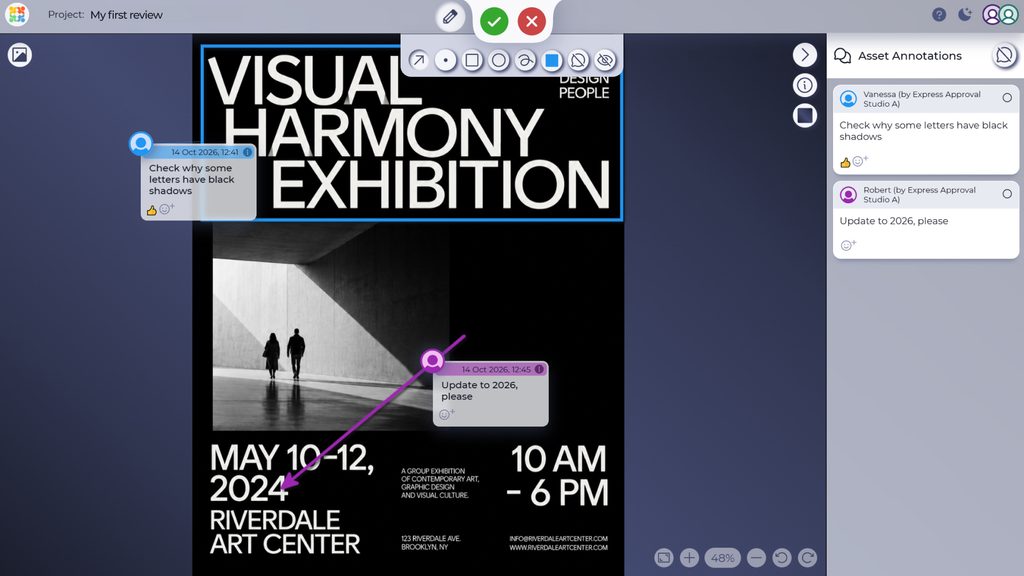
As a result, you and your client can annotate a PDF without an account and keep every note in one place instead of in five different chats.
Step 4. Upload a new version and compare
After your client leaves feedback, open the discussion panel and go through every comment. Then make the changes in your design software as usual.
When the changes are ready, upload the revised file as a new version of the same file in ExpressReview. This point is important. Do not upload it as a separate new file. Otherwise, the history will not connect, and you will lose the link between the feedback and the changes.
ExpressReview keeps every older version, along with its comments and its decision. So you can always go back and check exactly what the client asked for in the first round. This is helpful when a project runs for several weeks and details start to blur.
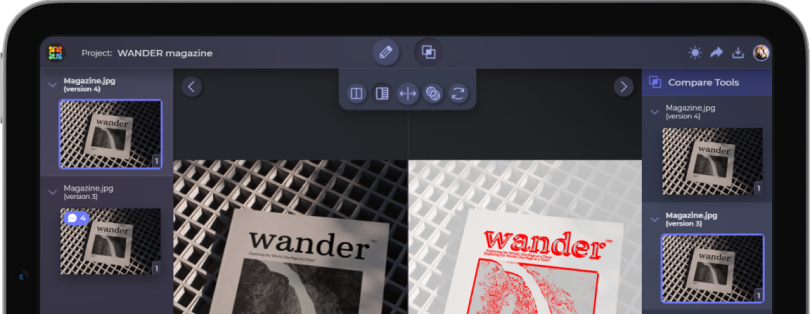
Before you send the new version, check your work. The fastest way to do this is with the compare modes. They let you compare two versions of a design and see exactly what changed. There are four modes:
| Compare mode | What it shows | Best for |
|---|---|---|
| Side by side | Two versions next to each other | A general look at both versions |
| Difference | Highlights the areas that changed | Finding small edits quickly |
| Fader | Fades from one version to the other | Checking position and alignment |
| Toggle | Switches between versions in the same spot | Spotting tiny shifts in text or color |
For example, if you moved a logo a few pixels, the fader or toggle mode will make the shift easy to see. As a result, you and the reviewer can confirm that you made every requested change and nothing else moved by accident.
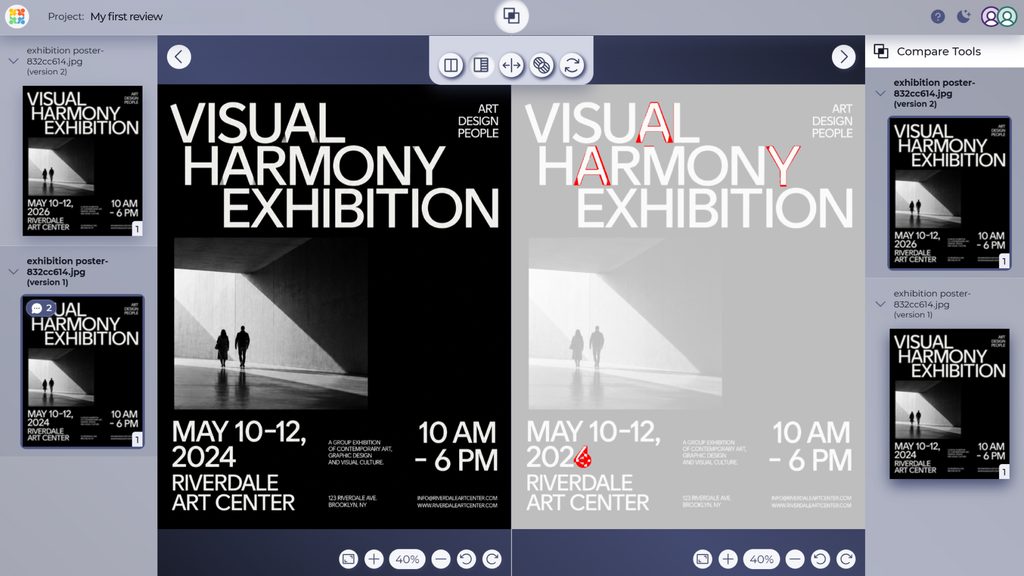
Finally, send the new link to your client. It also helps to add a short summary of what you changed. That way, your client knows where to look first.
Step 5. Get the final approval
When your client is happy with the file, they approve it. If something still needs work, they request changes instead. In that case, you simply repeat Steps 4 and 5. Upload the next version, send the new link, and wait for the decision.
Each version keeps its own decision. For example, your history might show version 1 as rejected, version 2 with requested changes, and version 3 as approved. Because of this, you can always see where the file stands and how it got there.
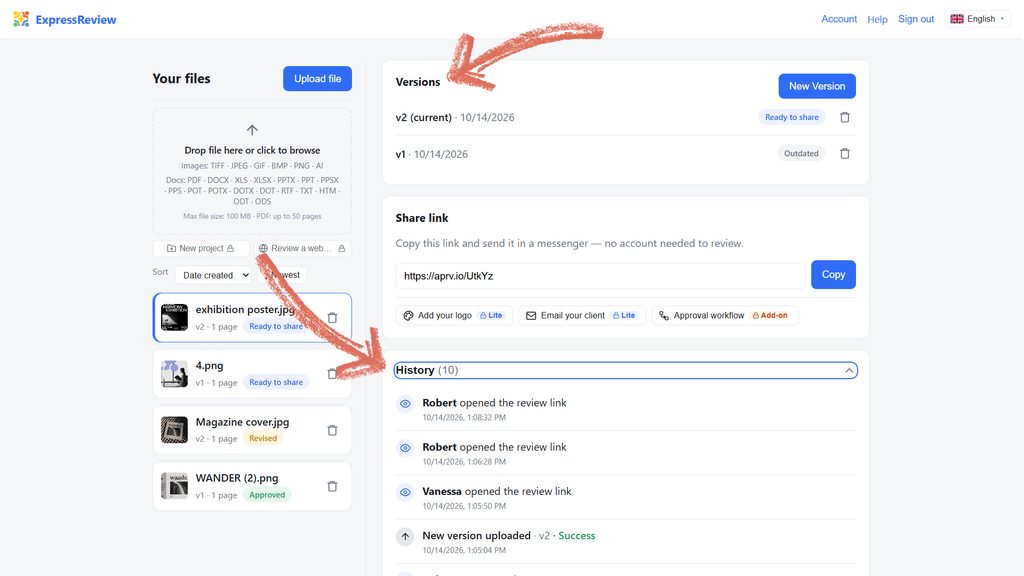
This record is especially useful for freelancers. Many freelance contracts include a fixed number of revision rounds. The version history shows exactly how many rounds took place. Likewise, if a client later says they never agreed to something, you can point to the approved version and the date it was approved. In short, this is how you get client approval on a design and keep proof that it happened.
Once the file is approved, you can move on to the final delivery with confidence. You know which version the client signed off on, so you deliver exactly that one.
How Your Client Reviews a File (No Account Needed)
Many clients have never used a proofing tool. So it helps to tell them what to expect. You can copy this section and send it to them, or link to it from your message.
When your client opens the link, they see your file in their browser. There is nothing to download and no form to fill in, apart from their name. Then they follow five simple steps:
- Open the link you received.
- Enter your name, so the designer knows who left each comment.
- Choose an annotation tool, such as a point or a box.
- Click on the spot you want to comment on and type your comment.
- When you finish, approve the file or request changes.
That is all. Your client does not need to install anything, because the review tool runs in any browser. They can also review on a phone or tablet. If they prefer an app, ExpressReview has iOS and Android versions, but the link works fine without one.
If your client wants a colleague to look as well, they can forward the same link. Each person enters their own name, so their comments stay separate and clear.
Finally, if you work with international clients, ExpressReview is available in English, Ukrainian, Polish, French, German, and Spanish. This makes the first review easier for clients who prefer to work in their own language.
Free Plan vs Express Plan
Reviewing is always free for everyone you share a link with. This is true on every plan, and there is no limit on the number of reviewers. The plans only change how many files and versions you can work with at the same time.
| Free | Express | |
|---|---|---|
| Price | $0 | $9.99 per month or $99.99 per year |
| Active files | 1 | Unlimited |
| Versions | 3 | Unlimited |
| Storage | 100 MB | 1 GB per user |
| Max file size | 100 MB | 100 MB |
| Reviewers | Unlimited | Unlimited |
The free plan has no time limit. So if you usually review one file at a time, it may cover your needs for a long while. It is also a good way to run your first few reviews and see how your clients respond to the process.
However, if you often work on several client files in the same week, or if your projects tend to go through many revision rounds, the free limits will start to feel tight. In that case, the Express plan removes the limits on files and versions.
Tips for Smoother Client Reviews
Sure, the tool handles the overall mechanics. Still, a few habits will make each review faster and less stressful.
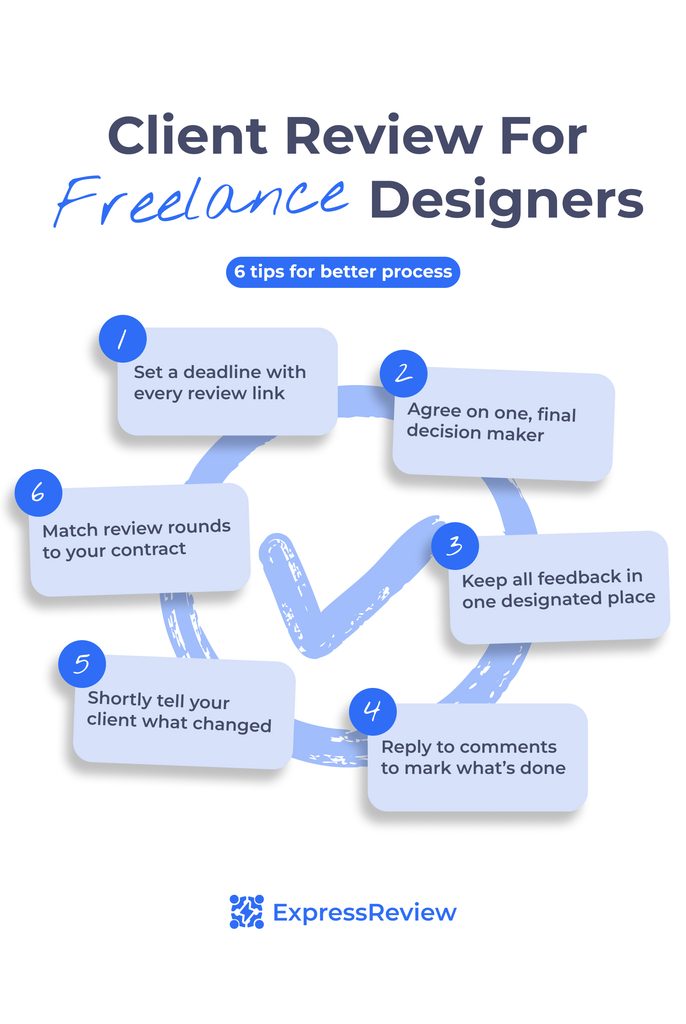
- Set a deadline with every link. Without a date, reviews tend to wait at the bottom of a client’s inbox. A simple “please review by Thursday” keeps the project moving.
- Agree on one decision maker. If several people comment, their feedback may conflict. Therefore, ask your client early on who gives the final approval. Then you know whose comments come first.
- Keep all feedback in the link. When feedback arrives in other channels, gently move it back to the file. This keeps your record complete and saves you from searching through chats later.
- Reply to every comment. A short reply such as “done” or a quick question shows your client that you saw their note. It also helps you track what is finished.
- Tell your client what changed. With each new version, send a short summary of your changes. This helps your client review faster, and it reduces the chance of new, unrelated feedback.
- Match revision rounds to your contract. If your contract includes a set number of revisions, the version history makes it easy to keep count. So you can have that conversation with facts, not memory.
Final Words
Running a review in ExpressReview follows one simple loop. First, you upload a file and share the link. Then your client annotates it and makes a decision. After that, you upload the next version, compare it with the previous one, and repeat until the file is approved. Once you have done this once, the process becomes routine.
I’d say the main benefit for freelancers is clarity. The work becomes so much easier when every comment sits on the exact spot it refers to, every version keeps its own history, and every approval has a name and a date attached to it. As a result, you spend less time and fewer nerves sorting feedback and more time on the work itself.
For your first review, start small. Pick one file, send the link to one client, and go through the five steps above. After that single round, you will know the whole process and how your clients respond to it. So, good luck!