TEAM SOLUTIONS
 WORKFLOW SOLUTIONS



 REVIEW TOOL
 PROJECT MANAGEMENT
 TOOLS & INTEGRATIONS
 CLIENT INTERVIEWS




Post is also avalible in:


Last updated: August 2026
I used to lose count of how many times a uni project would get stuck because nobody knew whose turn it was next. One person was expecting a DM or a friendly reminder, while another was waiting on an email. And the group monitor could just assume someone else had quietly ditched it. Oh, the mess of quarrels it used to summon…
Once on a job in the design industry, I realized that the same actually happens when a creative approval workflow runs on memory and good faith rather than on a system. Fortunately, it is also exactly the problem that creative workflow automation solves. Once you connect your tools, approvals move forward on their own, and everyone always knows what happens next.
In this guide, I will walk through what creative workflow automation actually means, why manual approval workflows break down as teams grow, and how integrations and AI agents can automate the process from start to finish. I will also share six practical steps you can use to automate your own approval workflow, even if you already have a tool stack in place.
What Is Сreative Workflow Automation?
For example, once a designer uploads a new version, reviewers get notified right away. And once everyone approves, the file is marked ready and sent on to the next tool in the chain.
In practice, this usually relies on integrations. Your creative approval tool connects to apps like Slack, Asana, Monday.com, or Microsoft Teams, either through a native connection or a platform like Zapier or Make. So when a status changes in one tool, it updates everywhere else too, without anyone touching a spreadsheet or sending a follow-up message. Pretty convenient, right? I must warn you that once you try it, manual approval workflow might seem like such a drag. Now, let me explain.
Why Manual Creative Approval Workflows Don’t Work
Manual creative approval usually starts out simple. A designer shares a file, a manager reviews it, and everyone moves on. But add a few more stakeholders, a tighter deadline, or a second round of revisions, and… Oops!

For once, feedback ends up scattered across email threads, chat messages, and comments on a printed proof. Two reviewers leave conflicting notes without realizing it. Then a file gets approved in one place but not another, so nobody can say for sure which version is actually final. And because nothing is tracked automatically, someone always has to chase people down just to know where a project stands.
This coordination overhead is a big part of why manual creative approval workflows do not scale. In fact, back and forth between approval stages eats up more than 40% of content creation time.
89%
of marketers deal with three or more approval stages before a single asset can go live.
Source: Adobe, 2025 link↗
Most of that gap comes down to lost time, unclear ownership, and feedback scattered across too many places at once.
This is exactly where the benefits of creative workflow automation show up. Once your tools are connected, every version, comment, and approval lives in one place automatically. Nobody has to remember to update anyone else, because the system does it right the moment something changes.
How API Integrations Enhance the Design and Approval Workflow
APIs are what make creative workflow automation actually work behind the scenes. Rather than exporting a file and uploading it somewhere else, an API lets two systems share data directly, so information moves the moment it is created. Let me show what exactly it brings to the table:
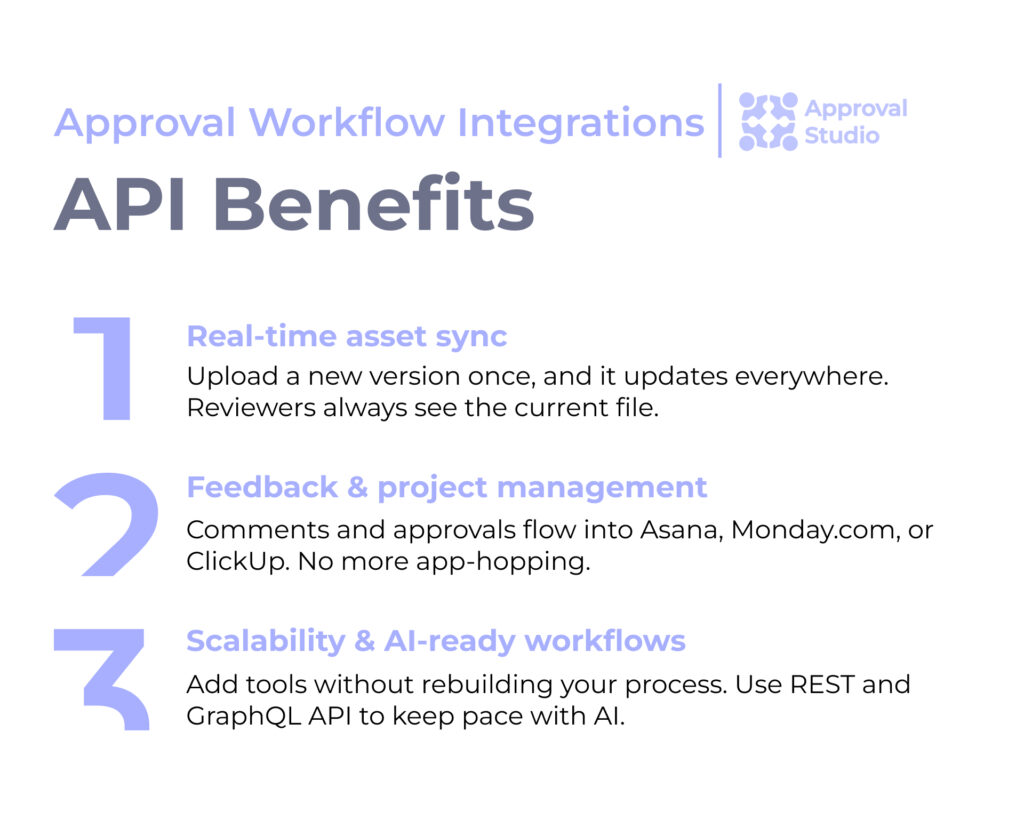
Real-time asset sync.
When your design tool and your artwork approval software are connected through an API, a new version uploaded in one place shows up everywhere else right away. Reviewers always see the current file, so nobody wastes time commenting on an outdated draft.
Centralized feedback and project management.
API integrations let comments, approvals, and status updates flow straight into the project management tool your team already uses, such as Asana, Monday.com, or ClickUp. So there is no need to check five different apps just to see where a task stands.
Scalability and AI-ready workflows.
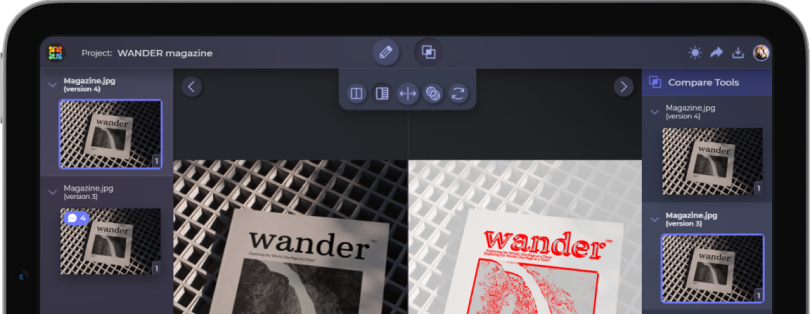
As your team grows, API integrations let you add new tools or automation rules without rebuilding your process from scratch. Many platforms, including Approval Studio, also expose REST API and GraphQL API, so your workflow can grow alongside new AI-powered tools instead of being limited to what one single app can do.

How AI Agents Automate Creative Approval Workflow
AI agents are now on everyone’s lips when it comes to creative approval automation. And the reason is simple: instead of just moving data between tools, an agent can make small decisions on its own, like figuring out who should review a file next, drafting a short summary of open feedback, or flagging an asset that has been stuck in review for too long.
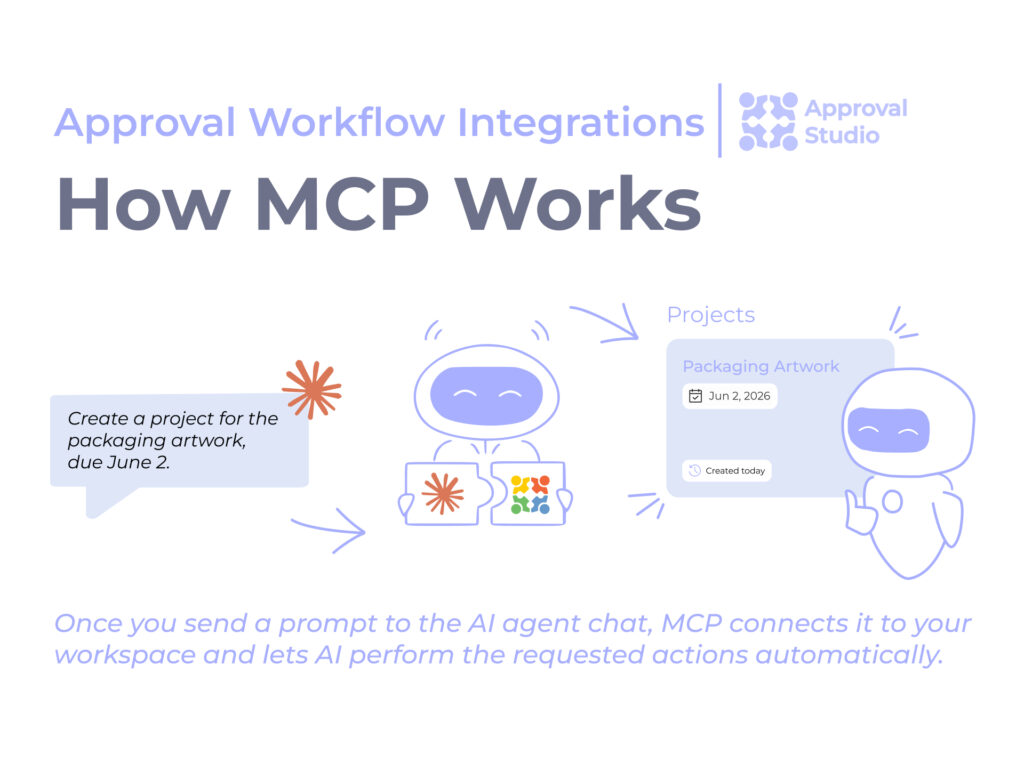
You see, AI tools can connect in two ways, and the real difference is who does the wiring. With an API, a developer builds each connection by hand and decides in advance what the AI is allowed to do, so every new action requires more code. An MCP server flips that around. It gives the agent one standard doorway into your tool.
Approval Studio’s MCP Server, for example, lets AI tools connect directly to your proofing data, so an agent can pull version history, comments, and approval status without needing a custom script for every request. MCP stands for Model Context Protocol, an open standard from Anthropic, a bit like a USB port for AI. The whole point is that you can plug in new tools without wiring up each connection yourself.
None of this replaces human judgment, though. A person still decides whether a design is approved. But agents can handle the repetitive parts around that decision, like reminders, status checks, and routing, so your team spends less time managing the process and more time on the creative work itself. The good old “work smart, not hard.”

How to Automate Your Creative Approval Workflow with Integrations in 6 Steps
The good news is that you do not need to rebuild your entire process to automate it. Here is a practical starting point, using tools most teams already have:
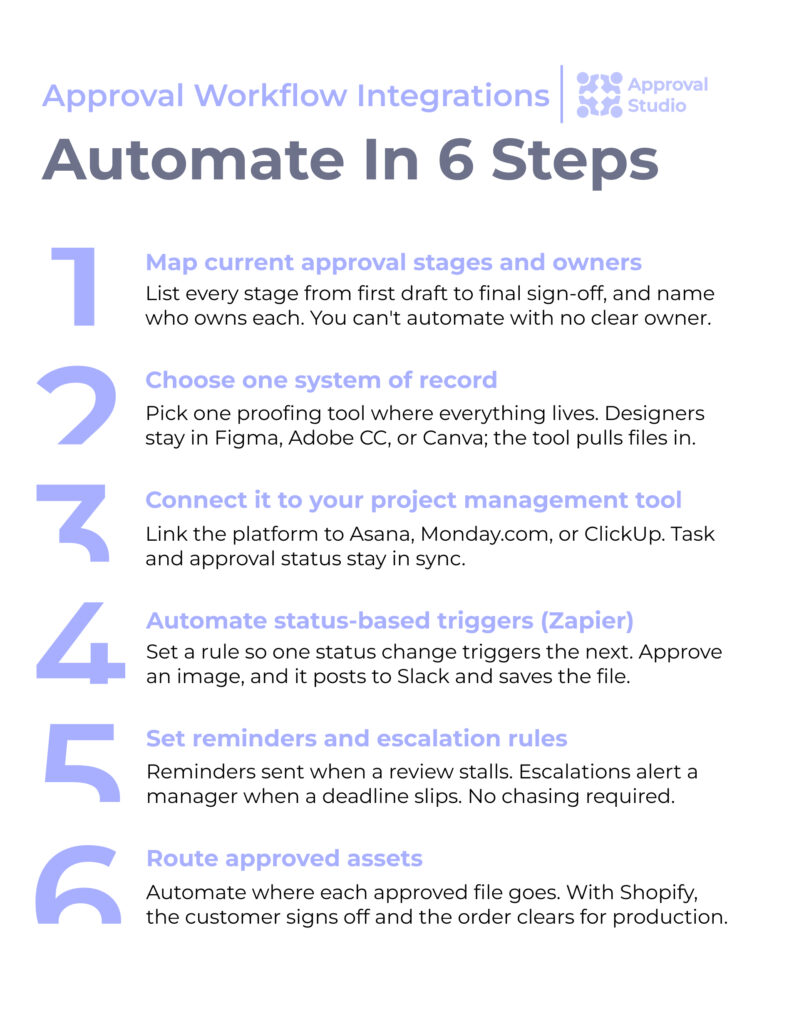
- Map your current approval stages and owners.
Write down every stage a design goes through, from first draft to final sign off, and note who owns each one. You cannot automate a handoff if it is not clear who is responsible for it in the first place.
- Choose one system of record for assets and feedback.
Pick one proofing tool where every version, comment, and approval lives. Designers keep working in Figma, Adobe Creative Cloud, or Canva, and the tool pulls those files straight in. So a new banner goes from Figma into review without a single email thread.
- Connect it to your project management tool
Link your approval platform to the project management tool your team already uses, like Asana, Monday.com, or ClickUp. This keeps task status and approval status in sync, so nobody has to update both by hand.
- Automate status-based triggers with Zapier or a native integration.
Set a rule so that when a status changes, the next action happens on its own. Tools like Zapier or Make do the wiring. So the moment a product image is approved, it can post to Slack, close the task in Asana, and drop the file into Google Drive, all at once.
- Set deadline reminders and escalation rules automatically.
Build in reminders that fire on their own if a review sits untouched for too long. Moreover, add an escalation step so it reaches a manager if a deadline is missed. This removes the need for someone to manually chase reviewers.
- Route approved assets.
Once a file is approved, automate where it goes next. Take Shopify integration: an incoming order becomes a proofing project in its own right, with the order number, customer name, and files already attached. The customer signs off on the mockup right there, and the order is cleared to move into production. So approval and delivery happen in one motion, with no email in between.
Automating Approval Workflow with Your Existing Stack
Most teams do not want to replace every tool they use just to automate approvals, and the good news is that they do not have to. A modern proofing platform should fall right into your existing stack, like a jigsaw.
The way this works is quite simple. A good tool connects to the apps your team lives in, so status updates, comments, and approvals sync wherever people already work, whether that is Slack, Asana, Monday.com, or Microsoft Teams. And when you need something more custom, it should give you an open door to build on, through REST and GraphQL APIs or an MCP server, so you can wire up automations in Zapier, Make, or your own scripts without waiting on a developer for every small change.
The point is a workflow that fits how your team already operates, minus the manual busywork in between. That is exactly the approach Approval Studio takes with its integrations. It plugs into the tools you already use, and it opens up its APIs and MCP server when you want to go further, so the setup grows with you instead of forcing you to start over.
Common Mistakes in Approval Workflows Automation
Nevertheless, automation can go wrong just as easily as a manual process does, usually because a broken step got automated instead of fixed. I’ve tried to list the mistakes that come up most often.

Automating a process that was never clearly defined.
If nobody agreed on who approves what, automation just moves the confusion faster. So, for your own sake, map your stages first, then automate.
Removing human judgment entirely.
Honestly, that is such a faux pas. Yes, automating reminders and handoffs is helpful. But automating the actual approval decision usually is not, especially for creative work where taste and brand fit matter.
Skipping a test run.
Rolling out automation across every project at once makes it hard to catch a broken trigger before it affects real client work. Just save your nerves and test with one project first.
Ignoring exceptions.
Rush jobs, client edits, and last-minute changes rarely follow the standard path. So if your automation cannot handle exceptions, someone will end up working around it instead of using it.

Final Words
In short, creative approval workflow automation is about making the tools you already use talk to each other, so approvals move forward without someone having to push them by hand.
And to get your automation set up successfully, start small. First, map your stages, pick one system of record, and then connect it to the tools your team already relies on. From there, integrations and even AI agents can take over the repetitive parts, while your team stays focused on the creative work that actually needs their attention.
If you ever want to see what this looks like in practice, Approval Studio’s workflow automation capabilities promise a great testing environment. So get on board and plug in!