TEAM SOLUTIONS
 WORKFLOW SOLUTIONS



 REVIEW TOOL
 PROJECT MANAGEMENT
 TOOLS & INTEGRATIONS
 CLIENT INTERVIEWS




Last updated: October 2026
Back when I was a student trying to make some money, I started tutoring. Since my lessons were online, I signed up for a free online whiteboard. And everything was fine till they limited some features and locked me out of a few boards. It turned out that this “completely free plan” had a limit, after which they started offering special Temu-like discounts on paid plans.
Pretending to be free just to hook your users? Not cool, bro. So, having been burned myself, I decided to list decent tools for freelancers with a clear idea of where the free part ends.
What Tools Do Freelancers Need?
Unlike me in my student years, most serious freelancers need a few tools or even one for each part of the job:
- A tool to do the work
- A way to collect client feedback
- A place to track projects and files
- A time tracker
- A way to book calls
- A tool to send invoices
On top of that, it helps to have a portfolio to win new clients and an assistant for the writing nobody enjoys. Imagine all of that crashing down on you one beautiful day, demanding card details. Guess some don’t even have to imagine.
So I browsed the best apps for freelancers and picked every tool on that list based on four things. First, the free plan has no expiry date. Second, you can use it for real client work, with no watermark on what you deliver. Third, your clients get a smooth experience, wherever that applies. And finally, it fits one person, so you don’t need a 20-seat team plan to get value from it.
One honest warning, though: free plans change often. I’ve checked every limit below as of October 2026, but it’s worth a quick look at each pricing page before you commit.
10 Best Tools for Freelancers at a Glance
First and foremost, I’ve put a quick-reference overview of all ten tools. To learn more about each one, scroll down for the full breakdown, including what’s free, where the free plan stops, and who it suits.
| # | Tool | What it does for you | What you get for free |
|---|---|---|---|
| 1 | Figma | Design and prototyping | Unlimited drafts, 3 design files in a team space, 3 FigJam files, and 30-day version history |
| 2 | Canva | Quick assets and social graphics | Locked pro content, 3-color limit on a Brand kit, 5 GB storage, 20 monthly AI uses |
| 3 | ExpressReview | Client proofing and approval | 1 active file, 3 versions, 100 MB storage |
| 4 | Notion | Project tracking and client hub | 10 guests, 5 MB uploads, 7-day page history, no workspace AI |
| 5 | Google Drive | File storage and delivery | 15 GB shared with Gmail and Photos, no advanced sharing |
| 6 | Clockify | Time tracking | Basic tracking, no invoicing/labor rates, no time auditing |
| 7 | Calendly | Booking client calls | 1 event type, 1 connected calendar, no workflows, Calendly watermark |
| 8 | Wave | Invoicing and bookkeeping | US and Canada only, fees on card payments |
| 9 | Behance | Portfolio | Basic profile, some Adobe Pro features are paid, platform commissions, no custom domain |
| 10 | ChatGPT | Proposals and client emails | Usage caps on the free tier |
Free plans verified as of October 2026. Plans change frequently, so always confirm current terms on each vendor’s website.
The 10 Best Free Tools for Freelancers, by Project Stage
This list follows a project from the first sketch to the paid invoice, and then on to the next client. I’ve grouped the tools this way because it’s how you actually meet them in your week. It also makes it easier to spot the stage where your own setup has a gap, which is usually the stage that eats most of your time. With no further ado, let’s get down to it.
Stage 1: Do the Work
1. Figma: Free Design Tool for UI, Web, and Brand Work
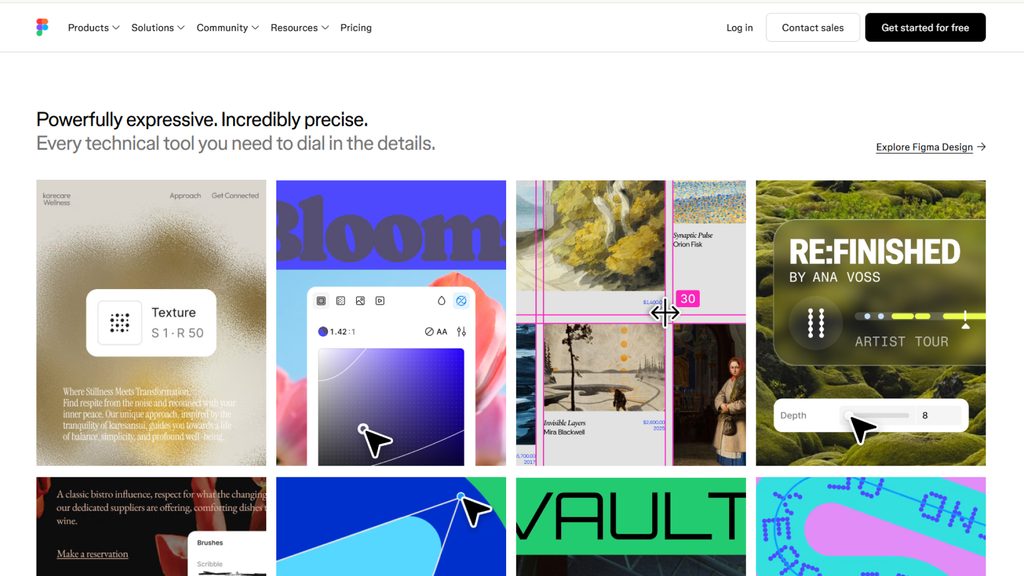
Figma is a free, browser-based design tool for interfaces, websites, and brand work. For anything that ends up on a screen, it has become the industry default, and most clients and developers you work with will already know it. Because it runs in the browser, you can open a file from any laptop without installing anything. Clients can also view a file with a link, which saves you from the headache of exporting.
The free Starter plan is generous for solo work as long as you know how it’s set up. Your personal drafts are unlimited, while the shared team space is capped at three design files. So the simplest habit is to do all your client work in drafts and move only the final file into the team space. That way, you’ll rarely bump into the cap, and your team space stays a clean archive of finished projects.
Who is it for? UI, web, and brand designers who need a professional design tool without a monthly fee.
What you get for free:
- Unlimited personal drafts on the Starter plan
- FigJam whiteboards for mood boards and early planning
- A daily allowance of AI credits
- Unlimited viewers on shared files
2. Canva: Free Tool for Quick Assets and Social Graphics
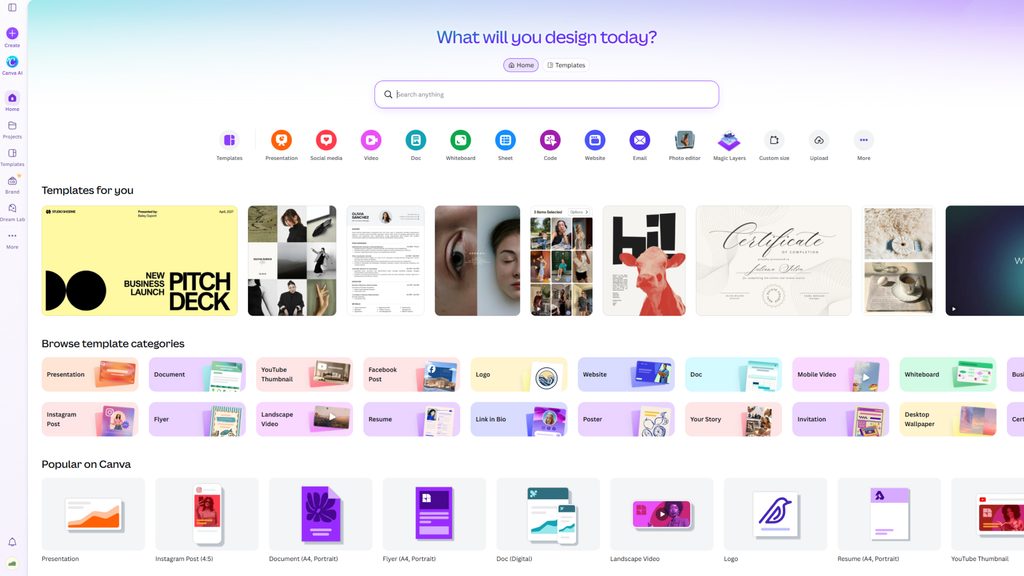
Canva is a free online design tool for quick visuals like social posts, simple decks, and one-page flyers. Some jobs simply don’t need a full design file, and all can be done in Canva in about ten minutes. It also helps that many of your clients already use it, so sharing an editable template with them is easy.
If you’re a designer, Canva can feel like cheating at first. I’d say it’s better to see it as a time saver for the small stuff. Keep your real design files in Figma or Adobe, and use Canva for the quick social versions of your work. You won’t need to open a heavy file just to post a teaser, and you’ll probably end up posting more often. Among free tools for graphic designers, it’s the one that pays off fastest for self-promotion.
Who is it for? Freelancers who need simple visuals fast, and designers who want to promote their own work.
What you get for free:
- A big library of templates
- 5 GB of cloud storage
- One brand kit with 3 brand colors
- A small monthly allowance of AI features
Stage 2: Get It Approved
This is the stage most lists of tools for freelancers skip. Now let me tell you why they shouldn’t. Say you finish the design, and then the feedback comes in as an email, a voice note, and a screenshot with a red circle on it. Sorting all of that out often takes longer than making the actual changes. On top of that, when the project ends, there’s often no clear record of what the client approved and when. A free proofing tool fixes this by putting the file, the comments, and the final decision in one place. And I’ve got one for you.
3. ExpressReview: Free Proofing Tool for Client Feedback and Approval
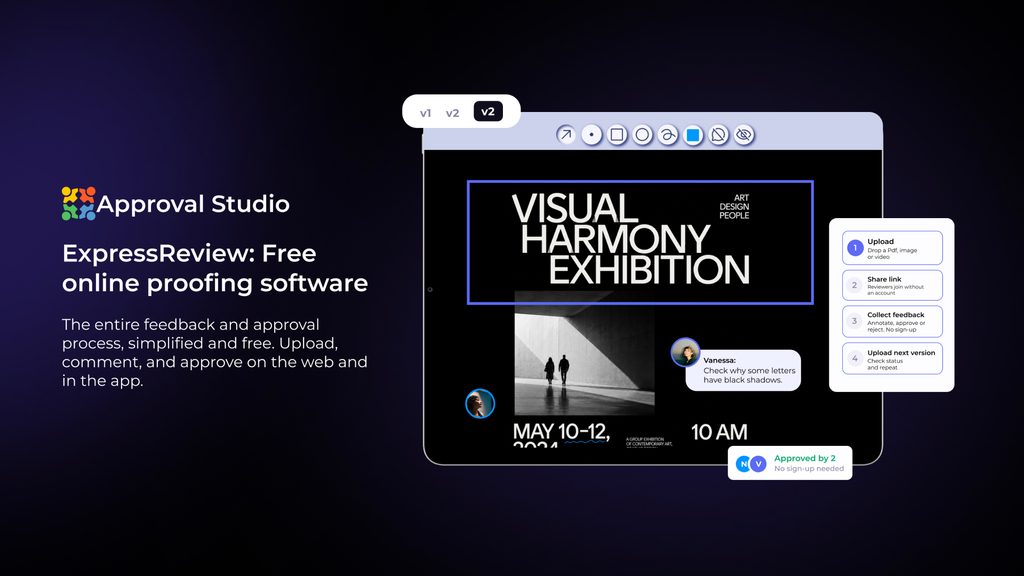
ExpressReview is a free online proofing tool that lets clients comment on and approve your files in the browser, with no account needed. You upload a file and send one link through whatever channel you already use with that client. Your client opens it, leaves comments right on the design, and then approves it or asks for changes.
When you upload the next version, the history stays connected. You can compare versions side by side or toggle between them to check that every change is in and nothing else moved by accident. Each version keeps its own decision with a name and a date, so you end up with a clear record of who approved what. That record comes in handy when your contract includes a fixed number of revision rounds, or when a client later says they never agreed to something.
Who is it for? Designers, illustrators, and solo marketers who need a clear sign-off and don’t want to make clients sign up for anything.
What you get for free:
- One review link per version, and clients don’t need an account or an app
- 5 annotation tools with threaded comments
- 4 compare modes to check what changed between versions
- Approve or request changes on every version, with names and dates in the history
- Multi-format file support, up to 100 MB per file
- Unlimited reviewers, plus iOS and Android apps
Stage 3: Stay Organized
Once the work is moving, the next challenge is keeping track of it. The good news is that the most useful tools here run on shared links, so your clients don’t need to learn anything new. A review link for feedback, a shared page for the project plan, and a shared folder for files cover almost everything freelancers and clients need to work together. These are the tools that help freelancers collaborate with clients without turning every project into a software onboarding session.
4. Notion: Free Project Management Tool for Freelancers
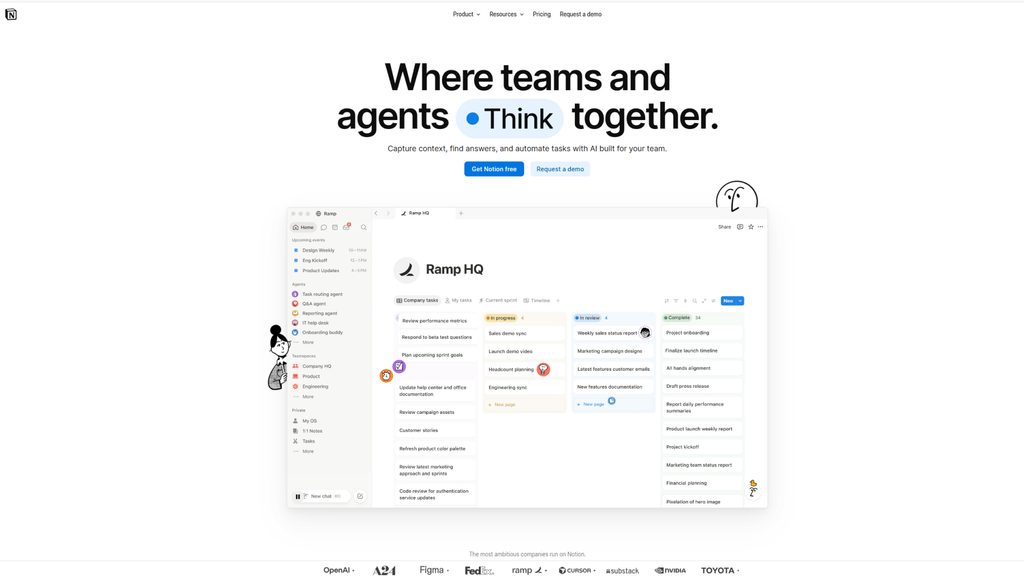
Notion is a free all-in-one workspace you can use as a project board, client hub, and notebook. Most project management tools for freelancers are built for teams, and they feel like it, with roles, sprints, and dashboards you’ll never open. Notion bends to whatever you need. One page can hold your project board, client notes, the brief, and a simple list of leads, and there are plenty of free freelancer templates if you don’t want to build it from scratch.
My favorite way to use it with clients is one shared page per project. Put the brief, the timeline, and links to the review files and the Drive folder on that page, then invite the client as a guest. When they ask “where are we?”, you send one link instead of writing a status update. If you only want a simple Kanban board, Trello’s free plan is a good alternative
Who is it for? Freelancers juggling several clients who want everything in one place.
What you get for free:
- Unlimited pages and blocks for one person
- Up to 10 guests, so a client can see their own project page
- Templates for project boards, CRMs, and content calendars
- 7-day page history
- 5 MB file uploads
5. Google Drive: Free Storage for Files and Final Delivery
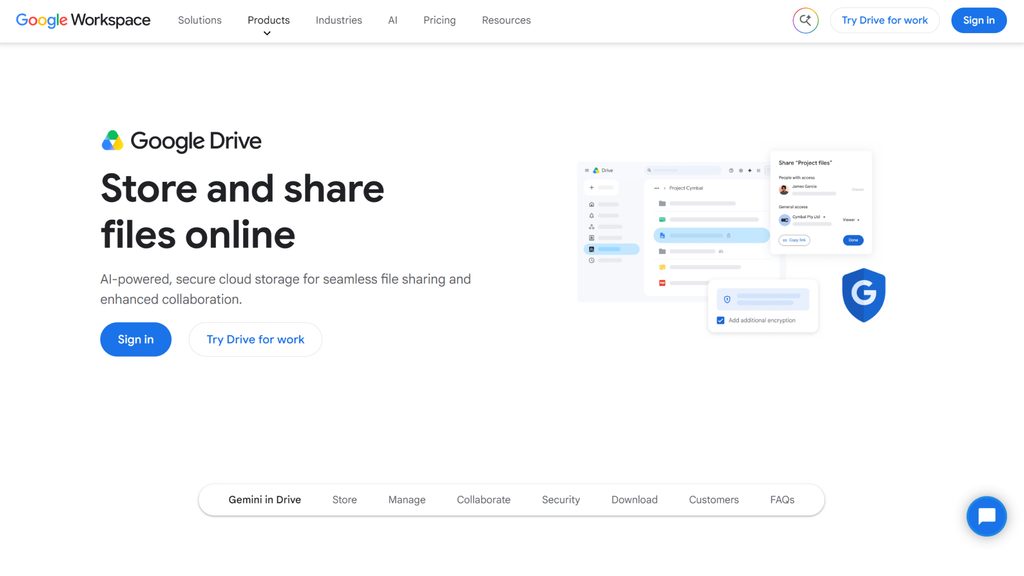
Google Drive is free cloud storage with built-in tools for documents, spreadsheets, and slides. Almost every client already has a Google account, so there’s nothing for them to learn when you share a folder. You also get Docs and Sheets for proposals, contracts, and simple budgets, which covers most of the paperwork a solo freelancer deals with. The catch is that the 15 GB of free storage is shared with Gmail and Google Photos, and large design files fill it up quickly.
The best way to keep Drive useful is a fixed folder structure for every client: 01_Brief, 02_Working, 03_Approved, and 04_Final. Deliver only from 04_Final, and you’ll never send the wrong version by accident. It also makes it easy to clear out old working files when you start running low on space, while the approved and final versions stay safe.
Who is it for? Every freelancer, for storing working files and delivering final ones.
What you get for free:
- 15 GB of storage, shared with Gmail and Google Photos
- Google Docs, Sheets, and Slides
- Shareable links with view, comment, or edit permissions
Stage 4: Handle the Administration
According to research, freelancers spend about five full working weeks a year on everything except the actual work. Tracking time, booking calls, and sending invoices: none of them is exciting, and none of them pays you directly. But each one gets a lot faster with the right free tool, and together they’re the difference between running a business and constantly catching up on it.
204
hours a year is the average time freelancers claim to lose to admin and paperwork, even with AI in their toolkit.
Source: Smallpdf, 2026 link↗
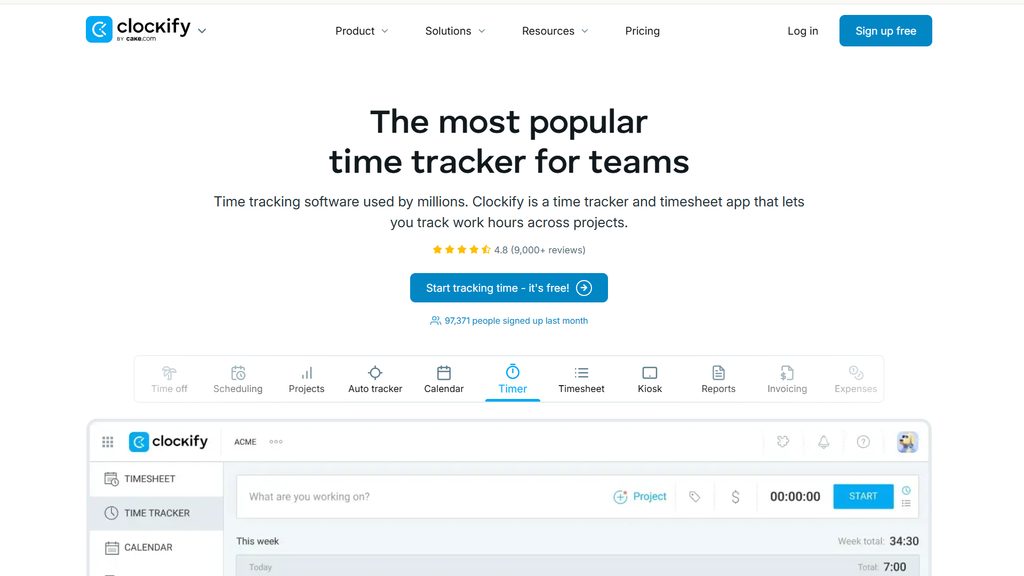
6. Clockify: Free Time Tracking App for Freelancers
Clockify is a free time tracking app that logs how long you spend on each client, project, and task. Even if you work on fixed prices, tracking your time tells you which clients are actually worth it. A project that looked good on paper can turn out to pay half your usual rate once you count the extra revision rounds and calls. Among free time tracking tools for freelancers, Clockify stands out because the core tracking has no limits on projects or clients.
You can start a timer from the browser extension, the desktop app, or your phone, and Clockify sorts the hours by client and project. I’d suggest tracking revision rounds as their own task. After a few projects, you’ll have real numbers to back up your next quote, and a polite but firm answer when a client asks for “just one more round”.
Toggl Track is a solid alternative if you prefer its interface. Both are popular, and both have free plans for individuals.
Who is it for? Freelancers who bill hourly, or anyone who wants to price their next project more accurately.
What you get for free:
- Unlimited time tracking
- Unlimited projects, clients, and tasks
- A browser extension, desktop app, and mobile app
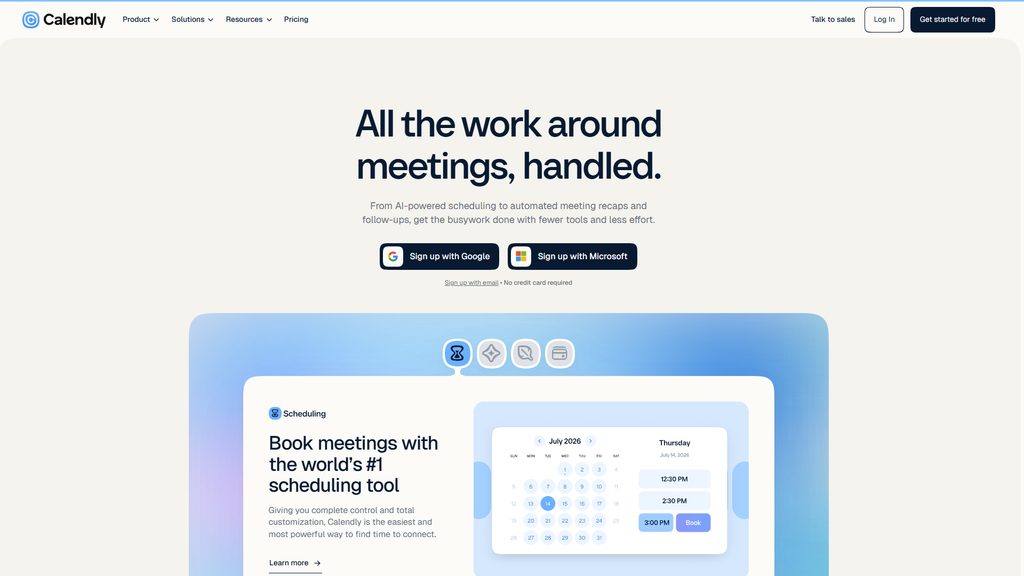
7. Calendly: Free Scheduling Tool for Client Calls
Calendly is a free scheduling tool that lets clients book a call in an open slot on your calendar. You share a link, the client picks a time that suits them, and the meeting lands in both calendars. It also handles time zones automatically, which helps a lot when your clients live in different countries.
The free plan gives you one active event type, so it pays to choose it well. Of all the scheduling tools for freelancers, Calendly is the one clients are most likely to have seen already.
Who is it for? Freelancers who do discovery calls or regular check-ins.
What you get for free:
- One active event type
- One connected calendar
- Automatic time zone handling
- Calendly branding on your booking page
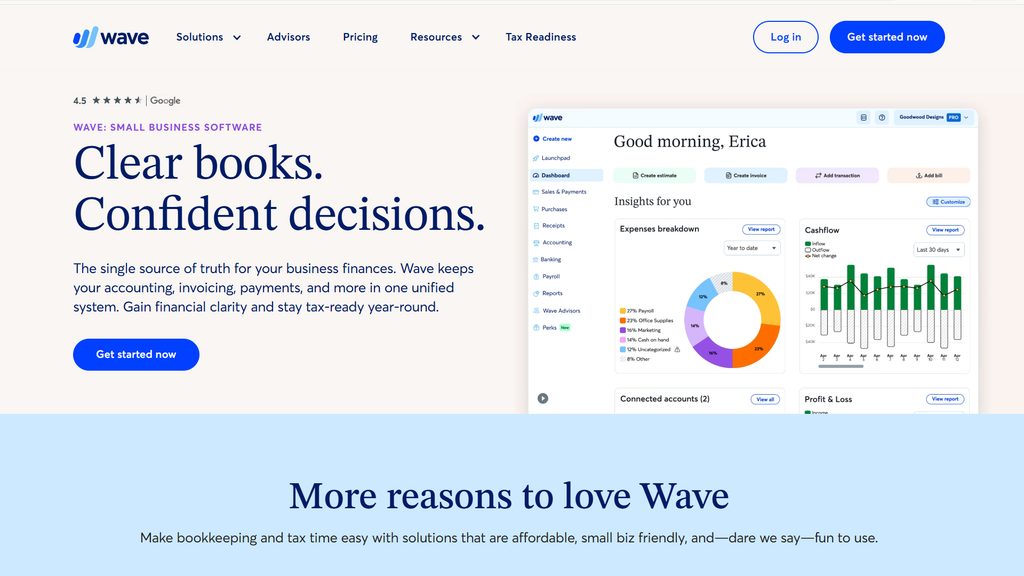
8. Wave: Free Invoicing and Bookkeeping for Freelancers
Wave is free invoicing and accounting software for freelancers and small businesses. Invoices, receipts, and basic bookkeeping live in one place, and the core features cost nothing. Clean, branded invoices also make you look more established, which matters when you’re new and still earning a client’s trust. Among invoicing tools for freelancers, Wave is one of the few that keeps the essentials free.
The main limitation is location. Wave is built for the US and Canada, and online card payments come with a fee. If you’re anywhere else, Invoice Ninja has a free plan that works worldwide and covers the same basics. Whichever you use, send the invoice on the day the client approves the final version. The project is fresh in their mind, and the approval is right there in writing.
Who is it for? Freelancers in the US and Canada. Everyone else should look at Invoice Ninja.
What you get for free:
- Unlimited invoices and estimates
- Basic accounting and expense tracking
- Payment reminders
- Fees on card payments
Stage 5: Win the Next Client
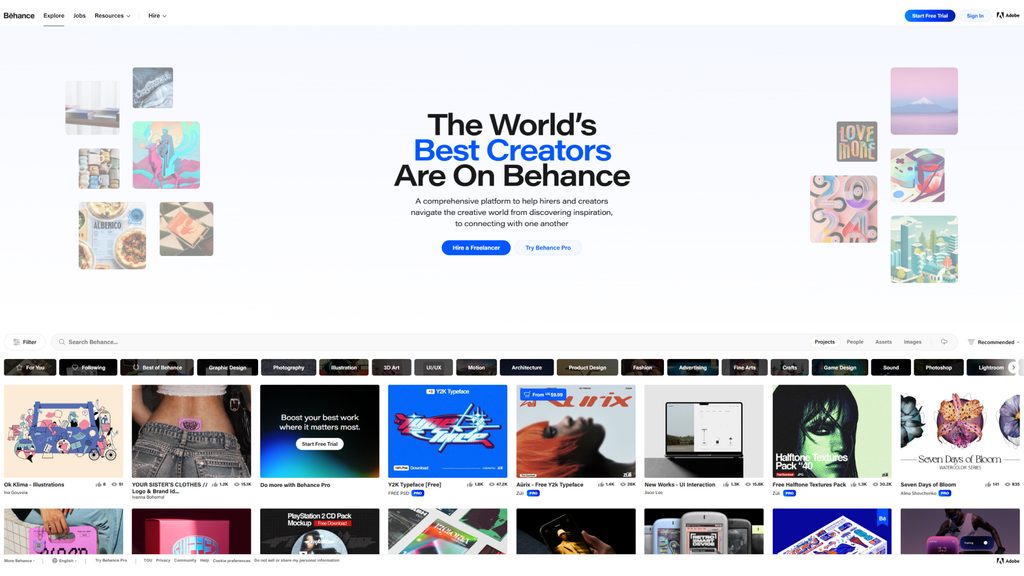
9. Behance: Free Portfolio for Designers
I’m sure you know Behance, Adobe’s free platform for showing creative work and getting found by clients. It shows up in Google, and clients browse it when they’re looking for someone to hire. That makes it a better first portfolio than a personal website you have to build, host, and keep updated. You can always add your own site later and link the two.
The biggest mistake I see on Behance is a portfolio of final images and nothing else. Clients want to see how you think and how you handle feedback, so show the process: sketches, early rounds, and the final version. A case study with three rounds of revisions tells a potential client more than ten polished mockups. Dribbble is a good second option for visual designers who want to reach a slightly different audience.
Who is it for? Designers and illustrators building a client base.
What you get for free:
- Unlimited projects on your profile
- A public portfolio link
- Access to the job board
- Has platform commissions
10. ChatGPT: Free AI Assistant for Proposals and Client Emails
And, of course, ChatGPT. It’s a free AI assistant that helps with writing, planning, and answering questions. A lot of freelance admin is writing: proposals, scope summaries, follow-ups, and replies to tricky client questions. ChatGPT gives you a first draft to edit, so those emails take minutes instead of an evening. Of all the AI tools for freelancers, it’s the easiest place to start because the free tier covers everyday use. Claude could be a good alternative if you focus more on writing text or work with code from time to time.
My favorite use for it has little to do with emails, though. Paste a client’s brief and ask it to list everything that’s unclear or missing. Then send those questions to the client. It saves you from pricing the wrong project, and it makes you look thorough from the very first message. Just keep the final wording your own, since clients can usually tell when a reply sounds generic.
Who is it for? Freelancers who’d rather design than write emails.
What you get for free:
- Everyday use of the current free model
- Help with drafts, summaries, and brainstorming
- Usage caps on the more advanced models and on file uploads
Free Freelance Tool Stacks by Job Type
I’d like to clarify that you don’t need all ten tools, especially in your first few months. Most freelancers get by with five, as long as those five cover the work itself, client approval, organization, and getting paid.
Here’s what I’d set up for three common situations. If you’re looking for free tools for designers specifically, the second stack is the one to save:
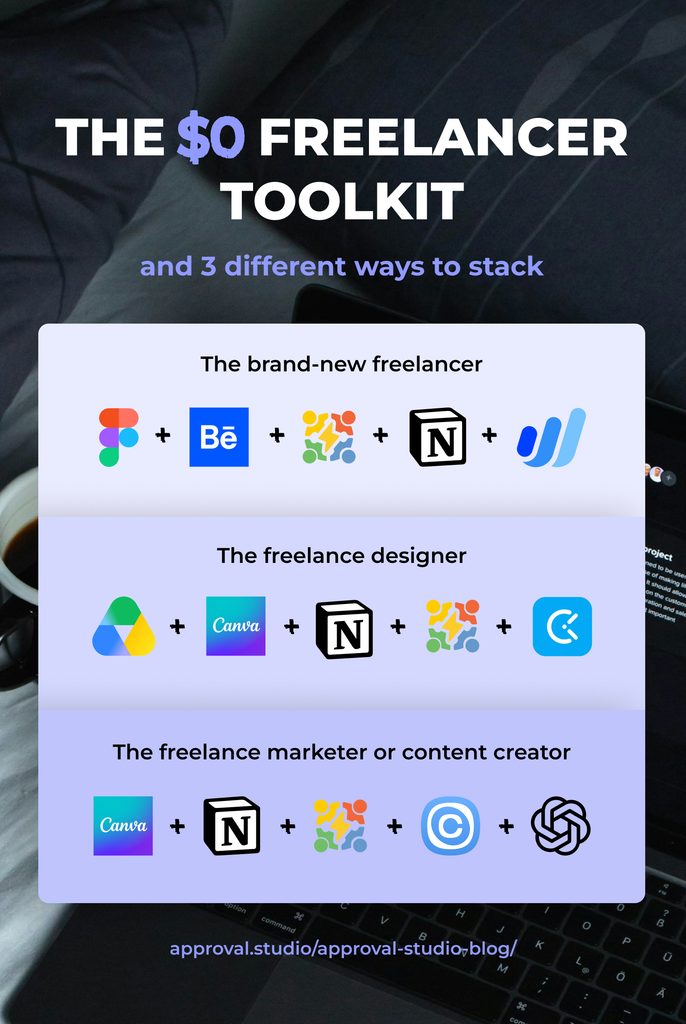
- The brand-new freelancer with zero budget: Google Drive + Canva + Notion + ExpressReview + Clockify
- The freelance designer: Figma + Behance+ ExpressReview + Notion + Wave
- The freelance marketer or content creator: Canva + Notion + ExpressReview (for PDFs and decks) + Calendly + ChatGPT
When Free Stops Being Enough
So, can you run a freelance business entirely on free tools? Yes, especially in your first year. Most freelancers outgrow free plans in two places: storage and taking card payments online. Until you hit those, free plans will serve you well. But when a limit starts costing you more in time than the paid plan costs in money, consider upgrading. Here are a few signs you’ve reached that point:
- You hit the same file or storage limit every week.
- Clients ask for something only the paid plan offers, like online payments or your own branding.
- You spend more time working around a limit than the upgrade would cost you.
- You bring in a second person, such as a subcontractor or an assistant.
Take ExpressReview as an example. The free plan works well if you review one file at a time. If you’re running several client files in the same week, the Express plan removes those limits. And if you start working with a team, Approval Studio adds projects, tasks, and approval workflows on top of the same review tool. Whatever you use, a simple rule of thumb applies: upgrade the tool that’s costing you the most time first.
Final Words
A good freelance setup grows one tool at a time, as you find out which parts of the job eat most of your week. So start with the stage that hurts the most right now. If feedback is a mess, fix approvals first. If you’re losing track of hours, start with time tracking. Get one tool working properly before you add the next one.
In a couple of months, you’ll have a setup that costs nothing and actually fits the way you work. You’ll spend less time chasing comments, invoices, and calendar slots, and more time on the work clients actually pay you for. So, good luck!