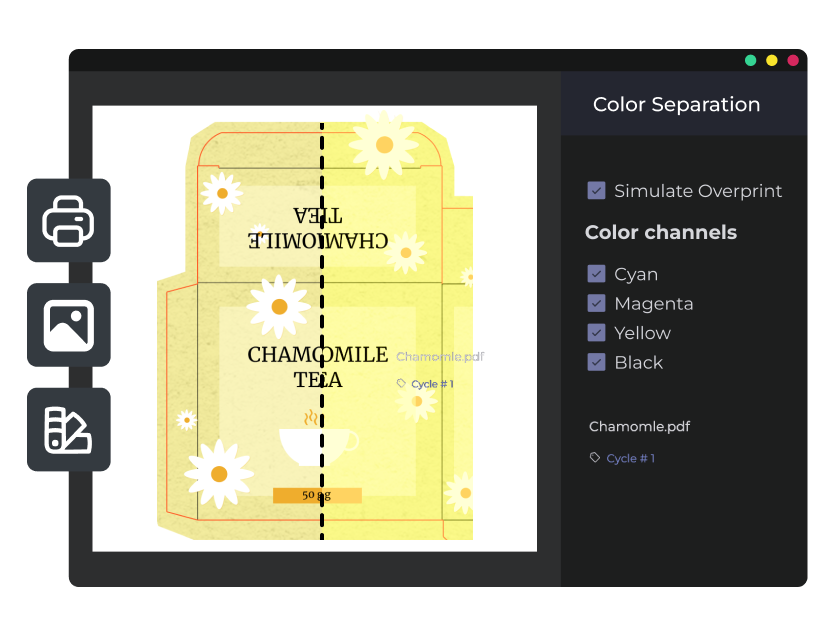

Prevent potential color issues early in the design phase

The color separation feature in Approval Studio makes sure your brand colors look the same on every package and any material.

Why do you need color separation?

Misfit colors damage your brand integrity, while re-printing a batch damages your budget. However, such problems can be easily prevented with the help of color separations. That’s how Approval Studio provides the foundation for a flawless print job.

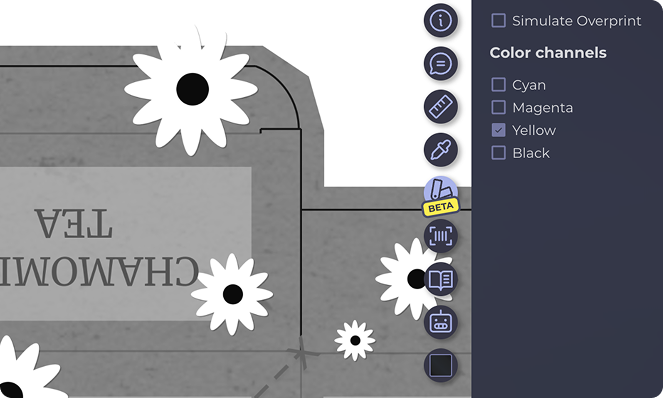
Toggle the CMYK colors channels

Print-Ready Color Control

Include spot colors and special inks

Preview the overprint interaction

Outroot post-production issues

How the barcode function works in Approval Studio

Upload the asset

Make sure it’s in PDF format. If it has layers, you can switch between them on the left panel in the Review Tool.

Separate the colors

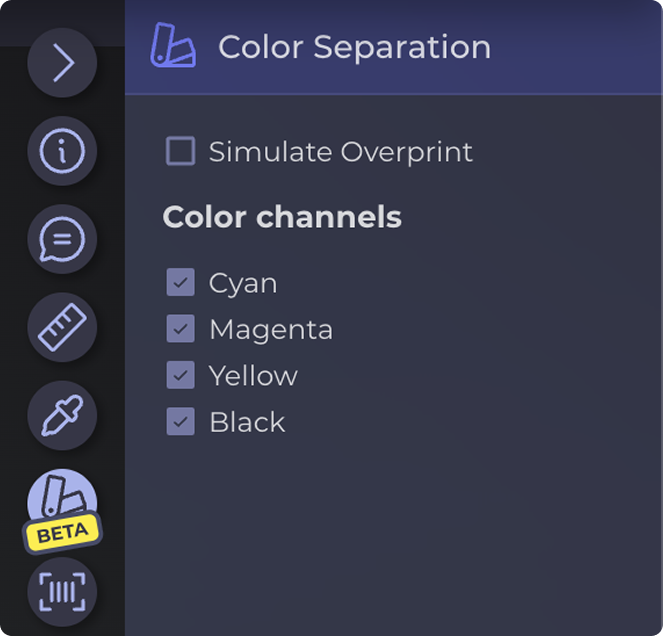
In the Review Tool, find the Color Separation feature on the right tool panel. The system will need to generate service files for the separation to display. 


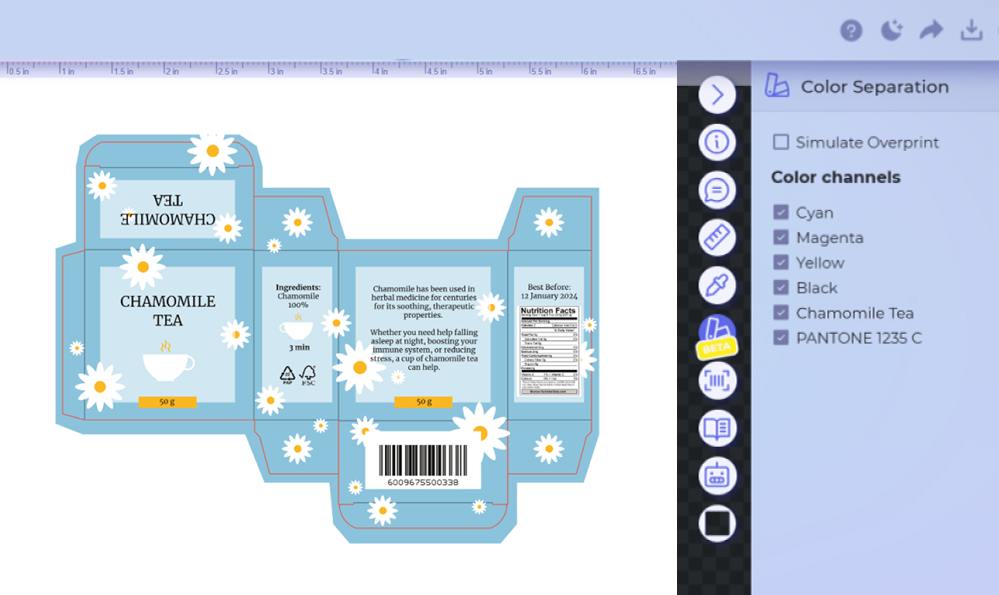
The CMYK channels

Find the CMYK channels on the right panel. If you uncheck three of them, you’ll get a B&W screen of the remaining checked channel.

Special colors & overprint

If your file has those, the settings will appear alongside the CMYK channels. To simulate an overprint, check the corresponding box.


Preview, isolate, and validate every ink layer for flawless print output.